
If you do not see your Organization name in your Master Tour Mobile App, it might need to be enabled.
How to Enable an Organization
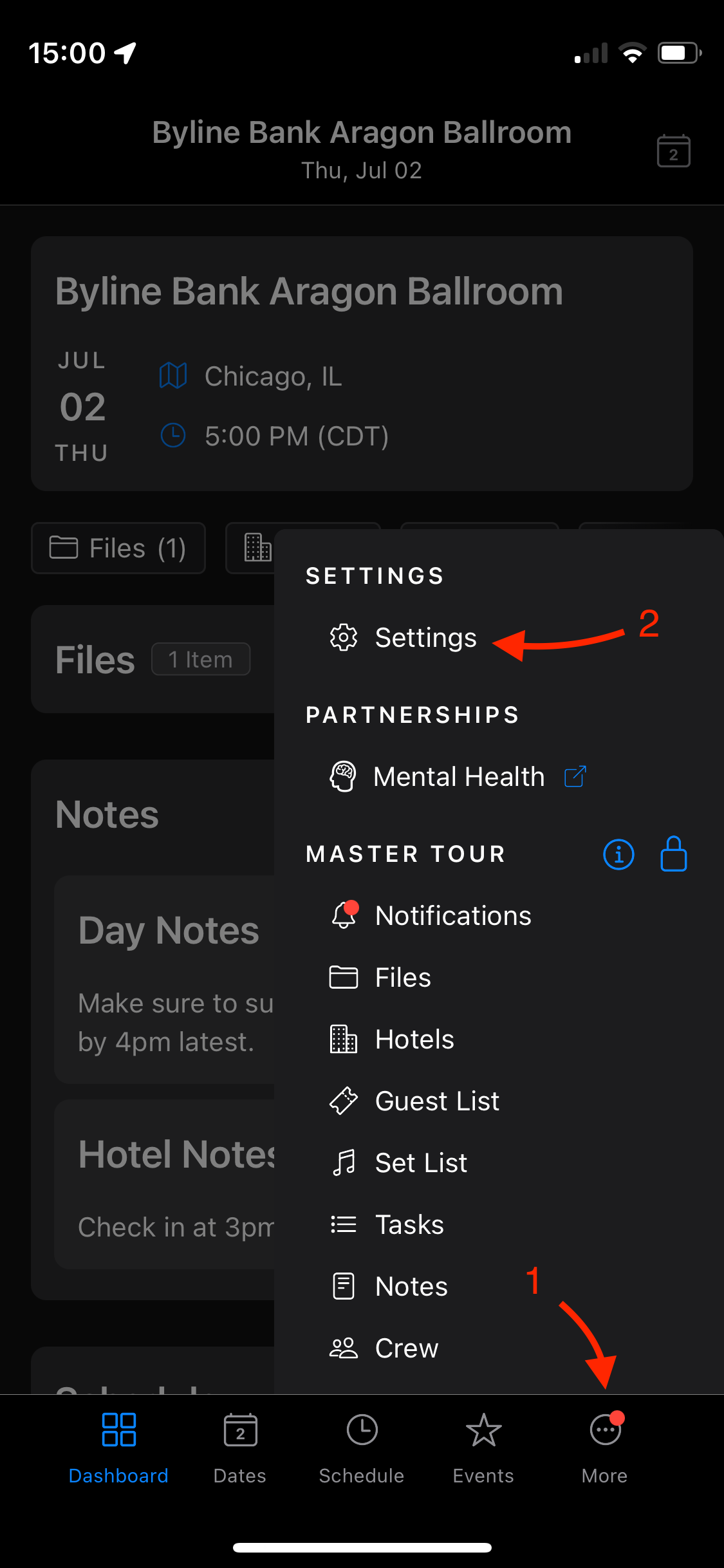
Tap on More at the bottom right corner followed by Settings.
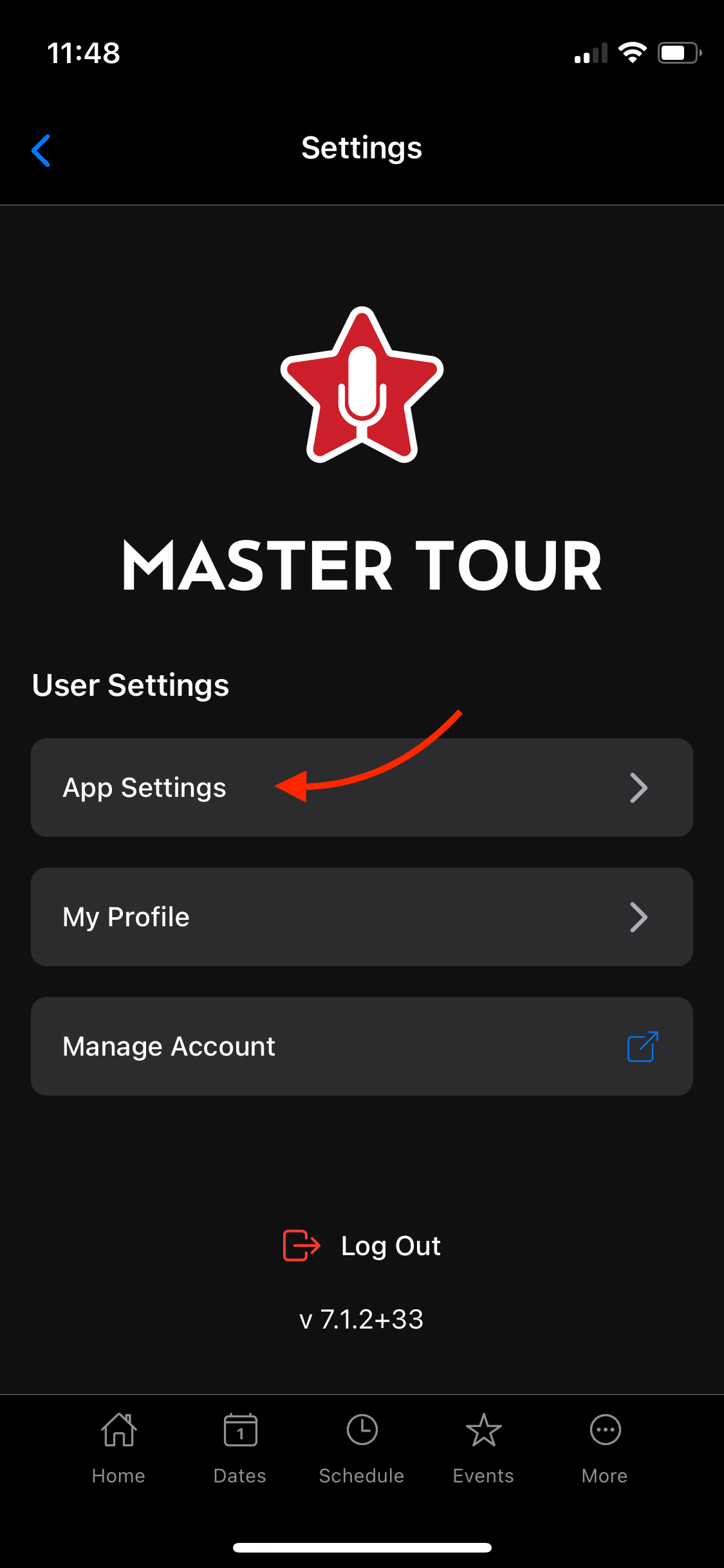
Select the App Settings Button.
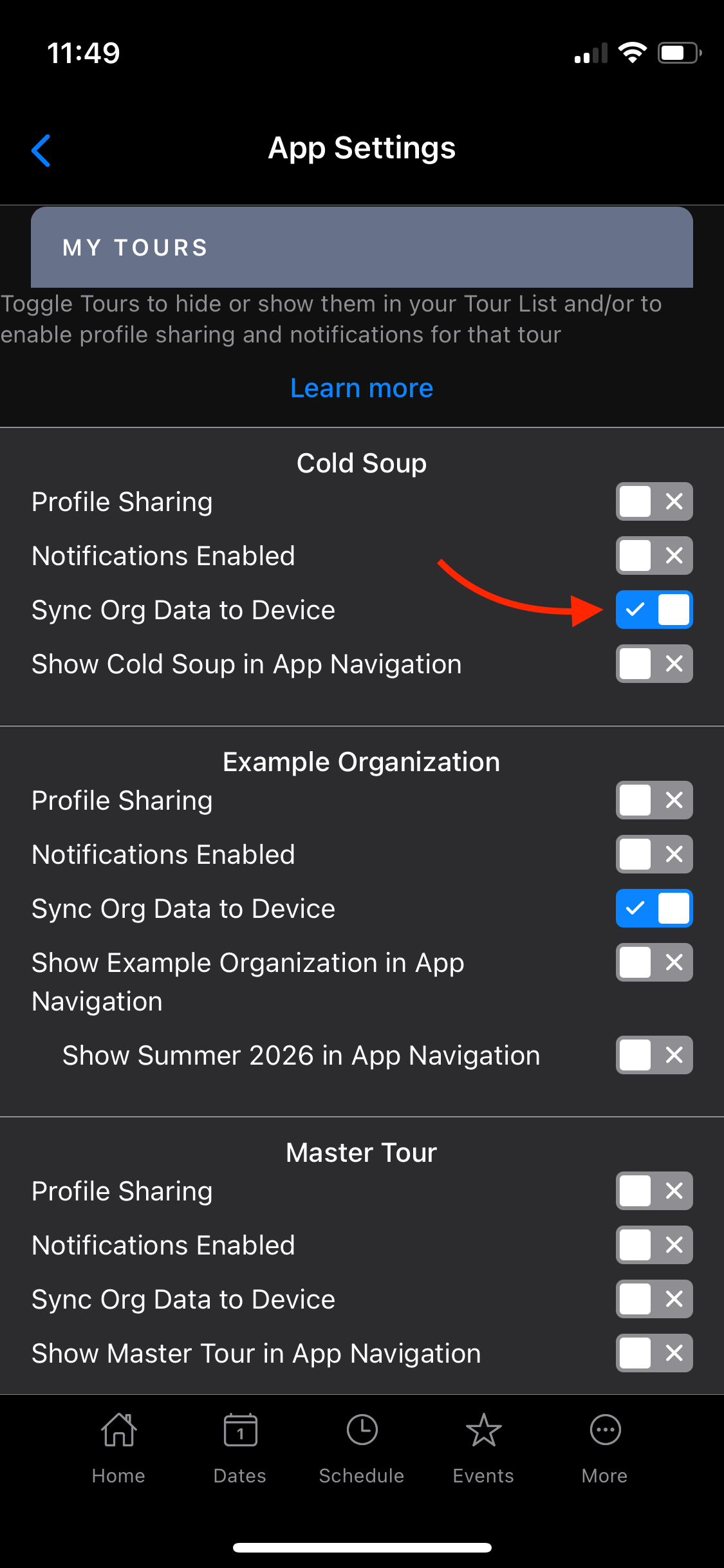
Inside the App Settings you will see a list of all Organizations your account is currently tied to. Locate the Organization you wish to enable and toggle the selector button next to Sync Org Data to Device to the blue checkmark icon.
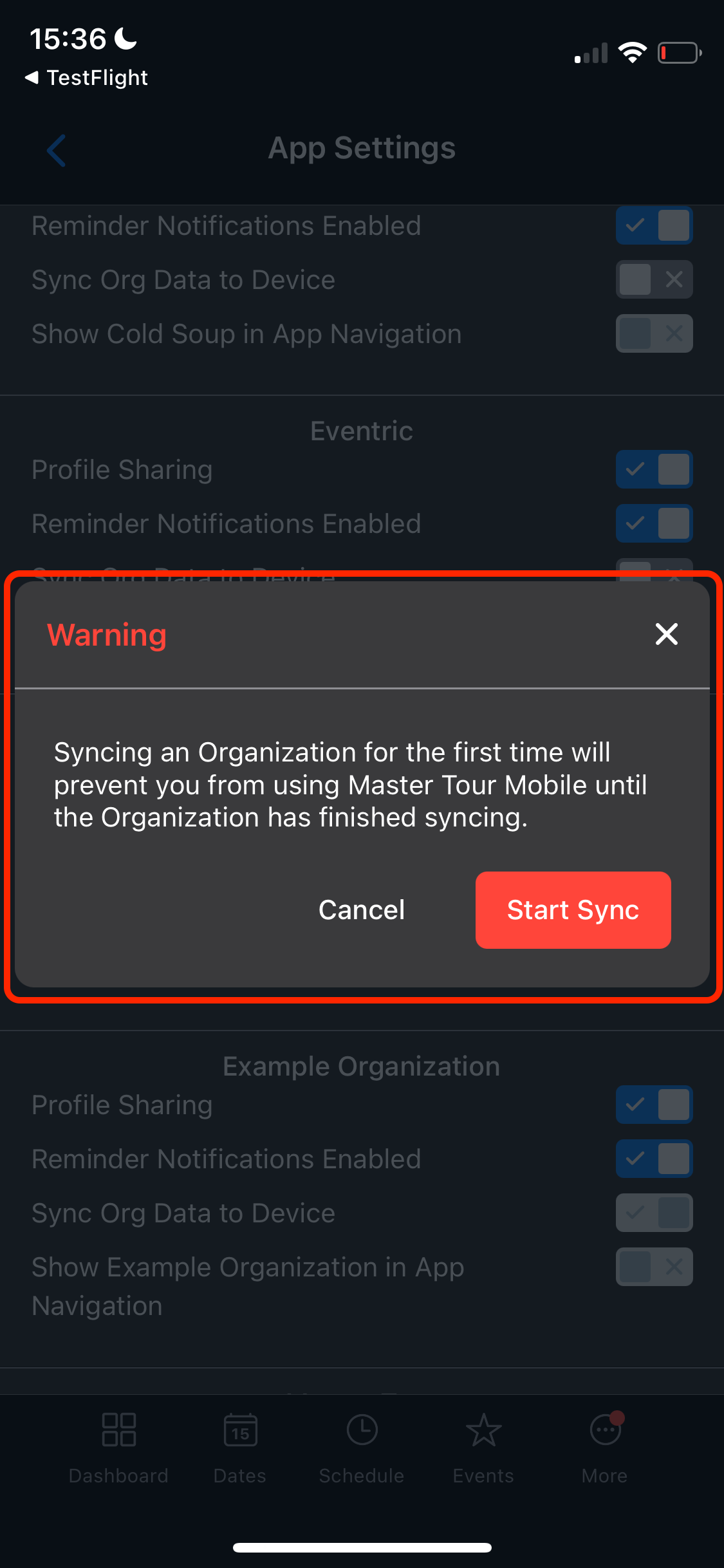
A pop-up window will appear in the middle of your screen and ask you to confirm the request to Sync into the Organization. Selecting the Cancel button will bring you back to the main App Settings Screen, while tapping on Start Sync will let the app begin to download all touring data inside the organization you requested to enable on your mobile device.
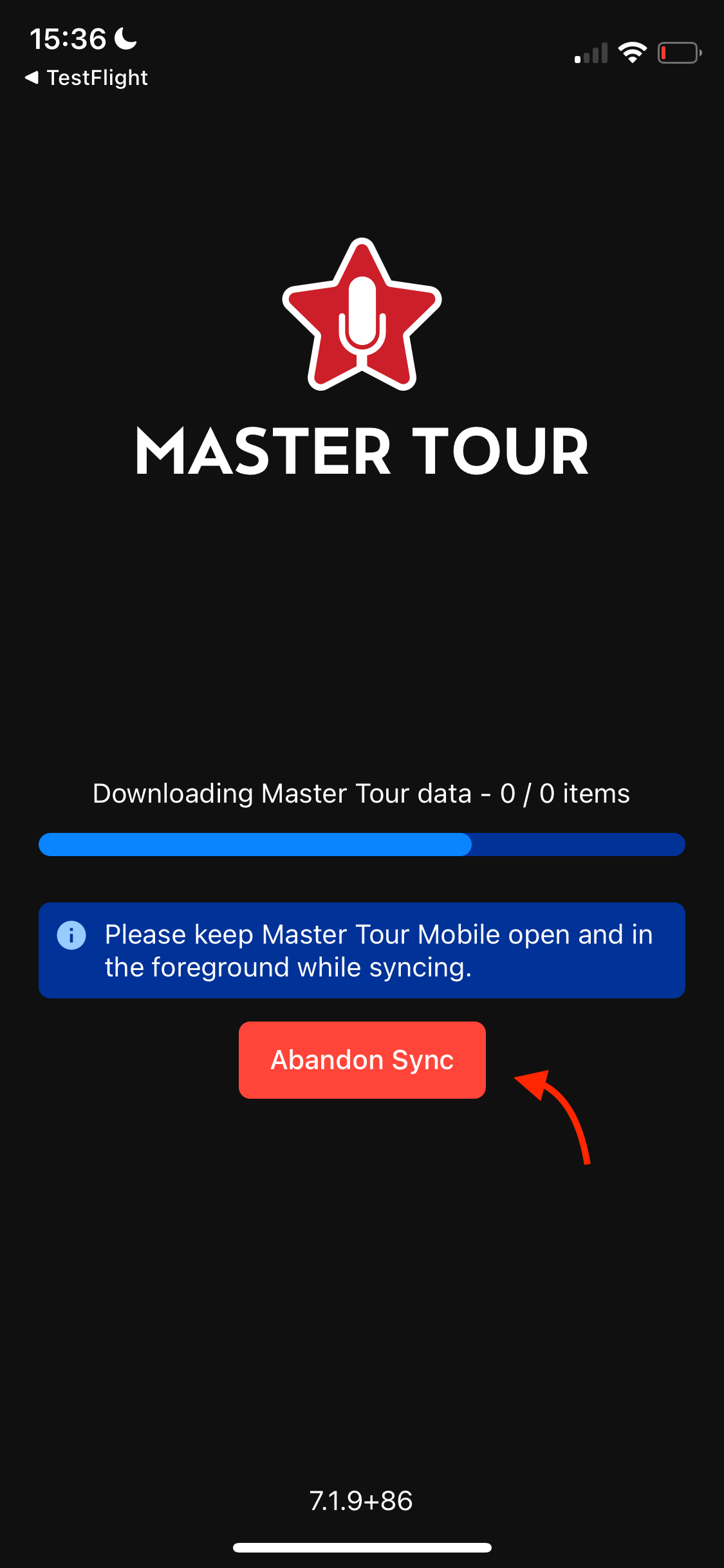
A new window will then appear with a progress bar on the download of your selected Organization. If you wish to leave the sync and exit back to the main dashboard of the app, pressing on the Abandon Sync button would allow you to do so. Keep in mind that an Organization will need to be fully downloaded before being able to access, and abandoning a sync will restart the progress of that.
Check out the video below for a real-time guidance on this article:
If you have any questions after following these instructions, please click here to open a Support Request or call +1-773-862-4246 to speak with a member of our Support Team between the hours of 10:00 am - 6:00 pm US Central Time (CT), Monday through Friday.