
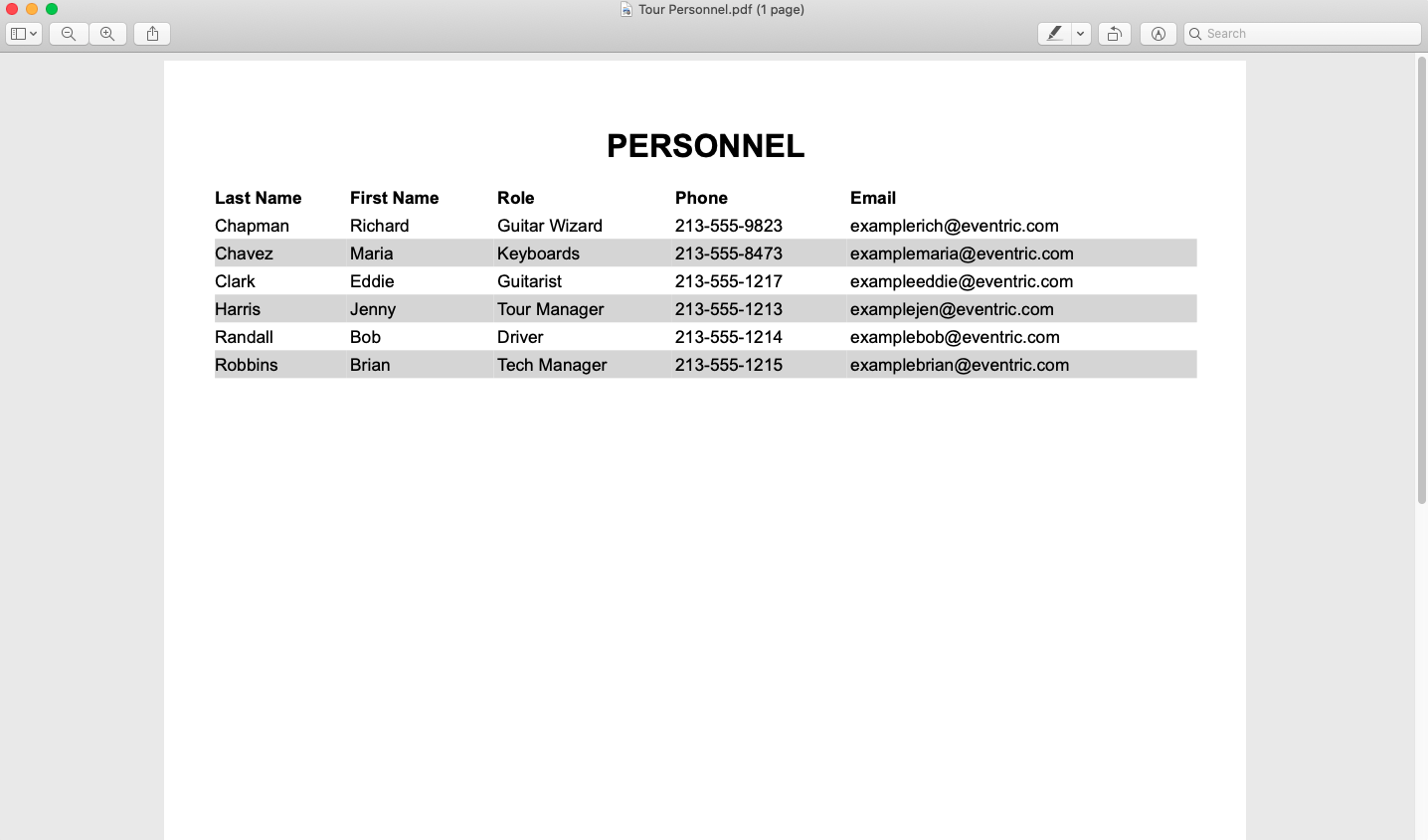
If you need to print a Tour Personnel Report for your tour, you can use Master Tour's Print Template functionality to export a .PDF that can be saved and printed.
This article covers:
- How to Select a Tour for Printing
- How to Navigate to the Print Template Gallery
- How to Print a Tour Personnel Report
How to Select a Tour for Printing
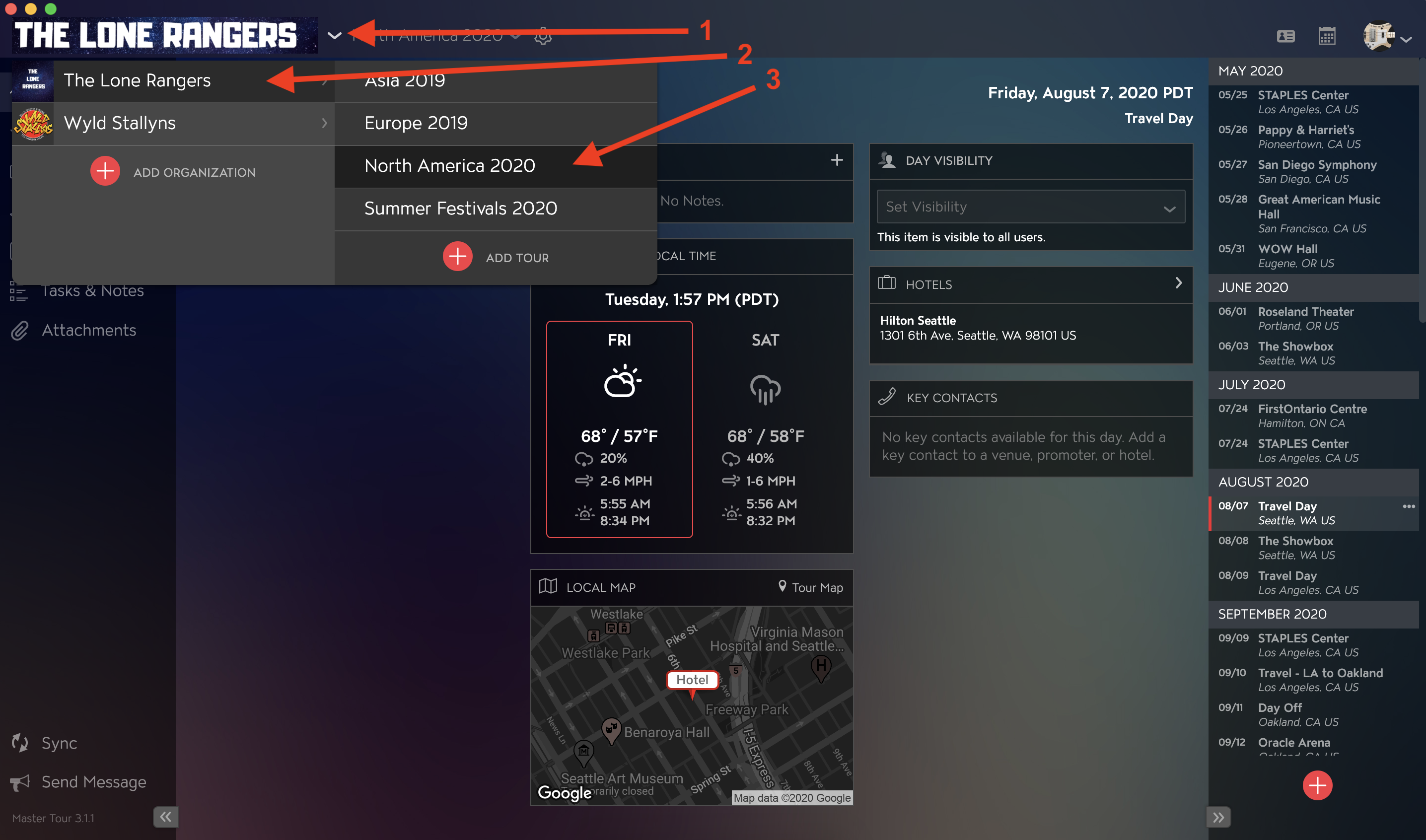
Within Master Tour, select the Tour that you would like to Print Tour Personnel for.
- Click on the Organization Selector dropdown menu.
- Select an Organization.
- Select a Tour from the Tour Selector dropdown menu.
How to Navigate to the Print Template Gallery
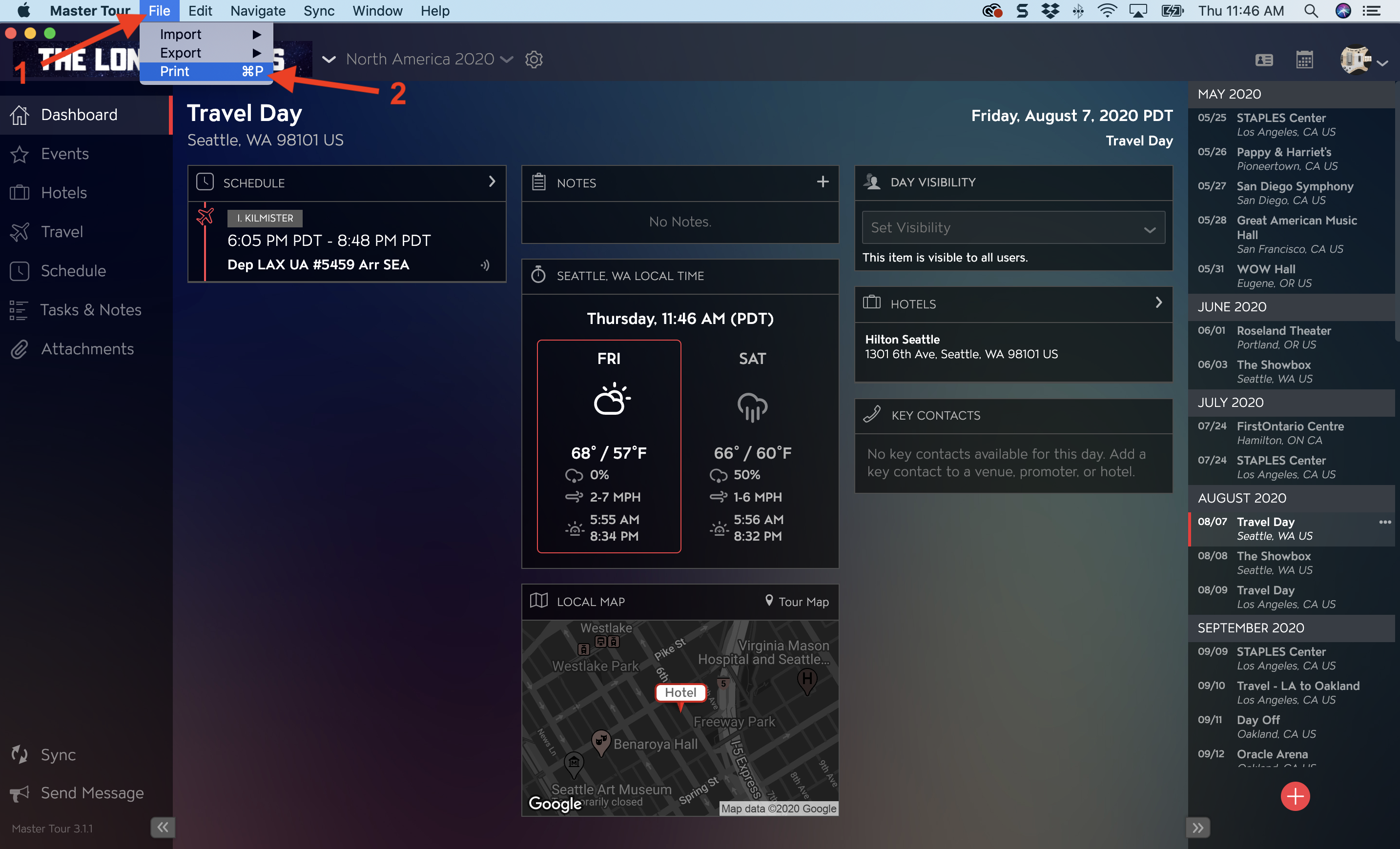
Use the Keyboard Shortcut ⌘P (Mac) or Ctrl+P (Windows) to quickly access the Print Template Gallery.
You can also navigate to the Print Template Gallery using these instructions:
- Click on File in the Master Tour Menu Bar.
- Click on Print in the dropdown menu.
How to Print a Tour Personnel Report
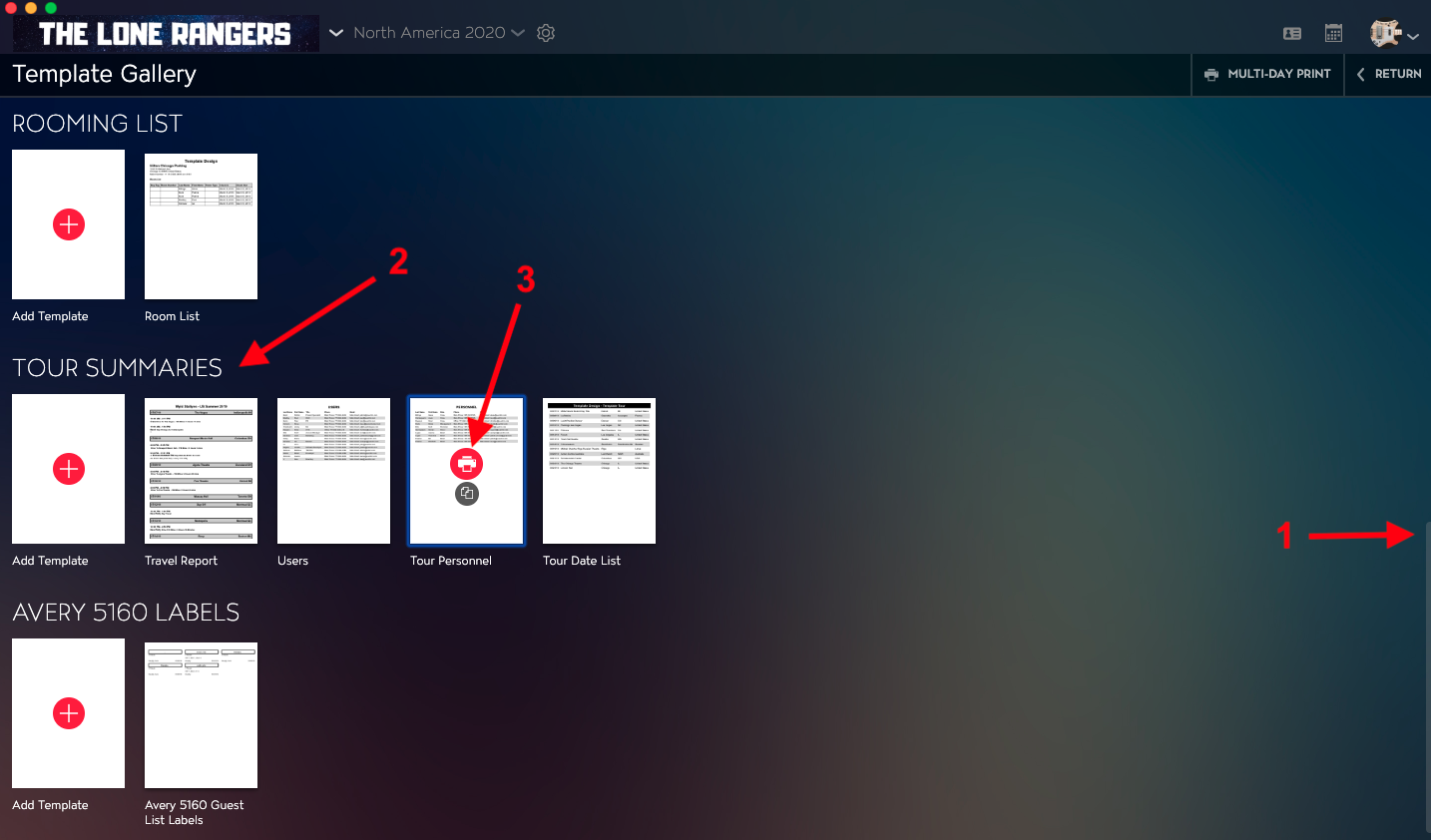
- Scroll down by using the Scroll Bar on the right side of the application.
- You will see the Tour Summaries template section.
- Hover your mouse over the Tour Personnel Print Template and click on the Red Printer button.
You will be directed to the Report, where you can then:
- Choose your Page Size using the Page Size Selector in the upper left corner of the application.
- Choose your Page Orientation by clicking on the Portrait or Landscape button to the right of the Page Size Selector.
- Click on the Print button in the right column.
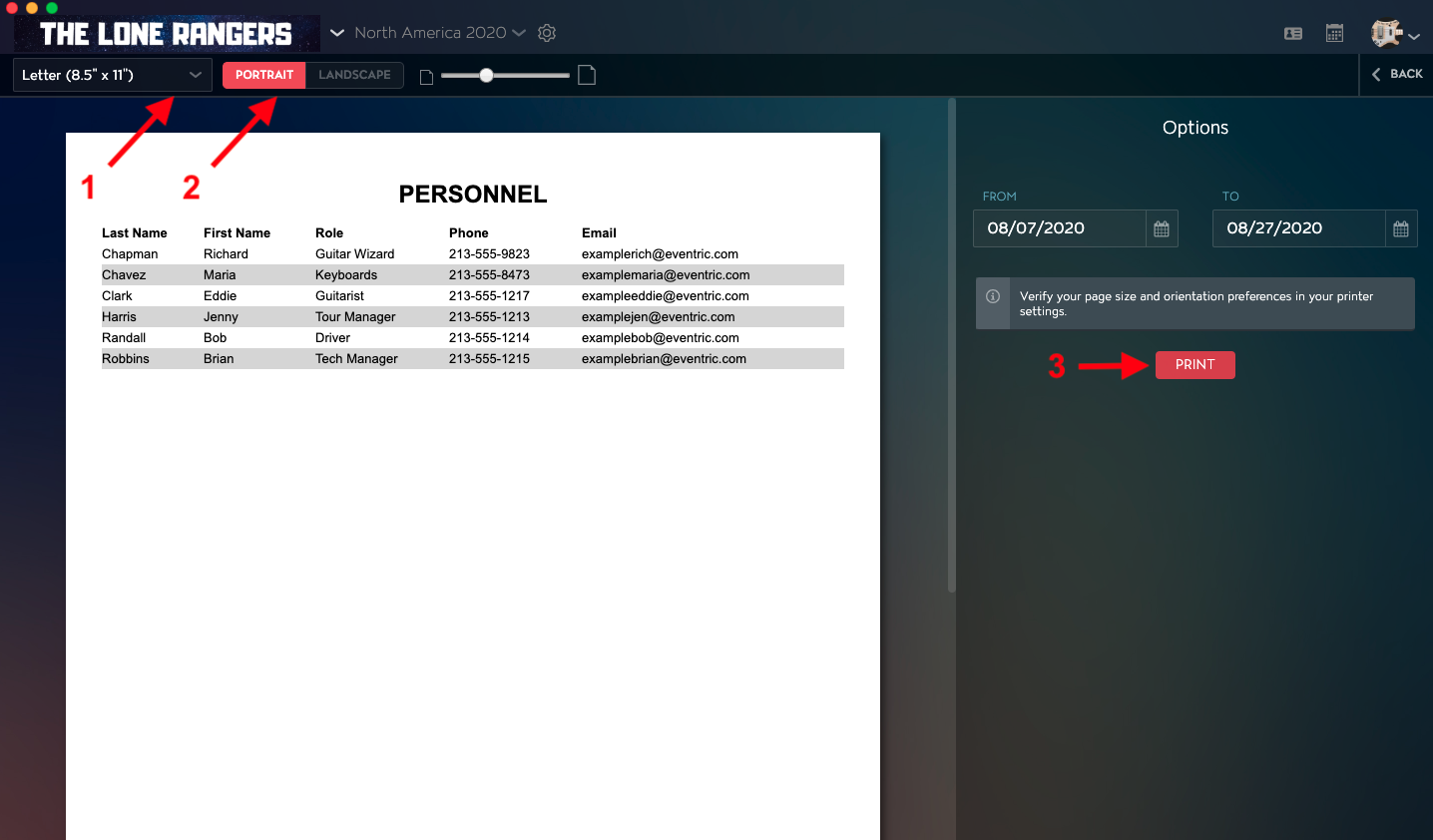
A file titled Tour Personnel.PDF will be generated that can be saved and printed from your computer.
If you have any questions after following these instructions, please click here to open a Support Request or call +1-773-862-4246 to speak with a member of our Support Team between the hours of 10:00 am - 6:00 pm US Central Time (CT), Monday through Friday.