
Master Tour allows you to create Print Reports of Tour info that can be exported as PDF files.
This article covers how to:
Save a Print Report as a PDF on Preview
Save a Print Report as a PDF in Adobe Acrobat
Save a Print Report as a PDF in Microsoft Edge
Locate The Template Gallery
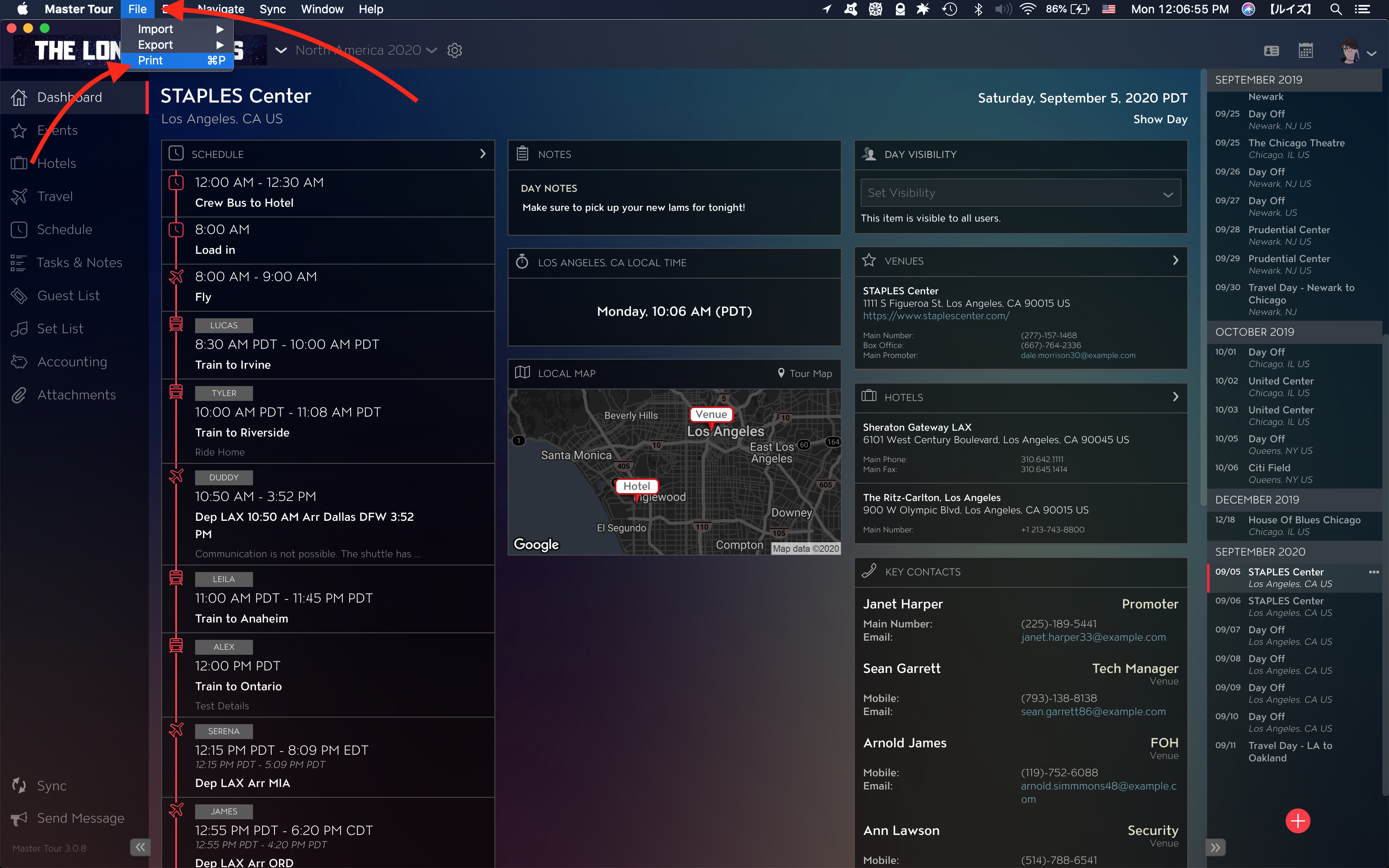
To export any Print Report to a PDF file, click on File at the top left then on Print to access the Template Gallery.
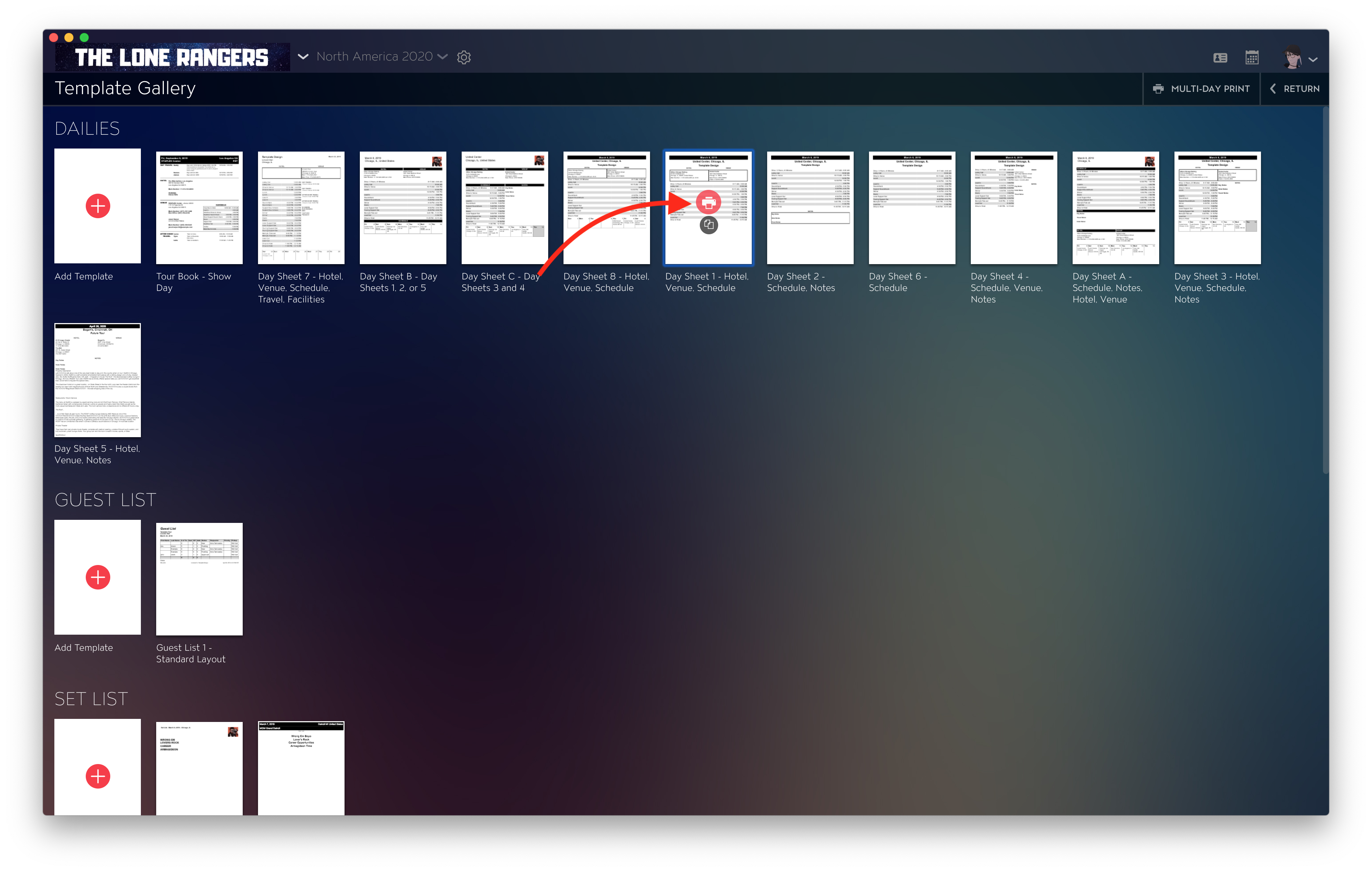
From this menu, hover with your cursor over the Template you would like to export as a Print Report PDF file and click on the printer icon.
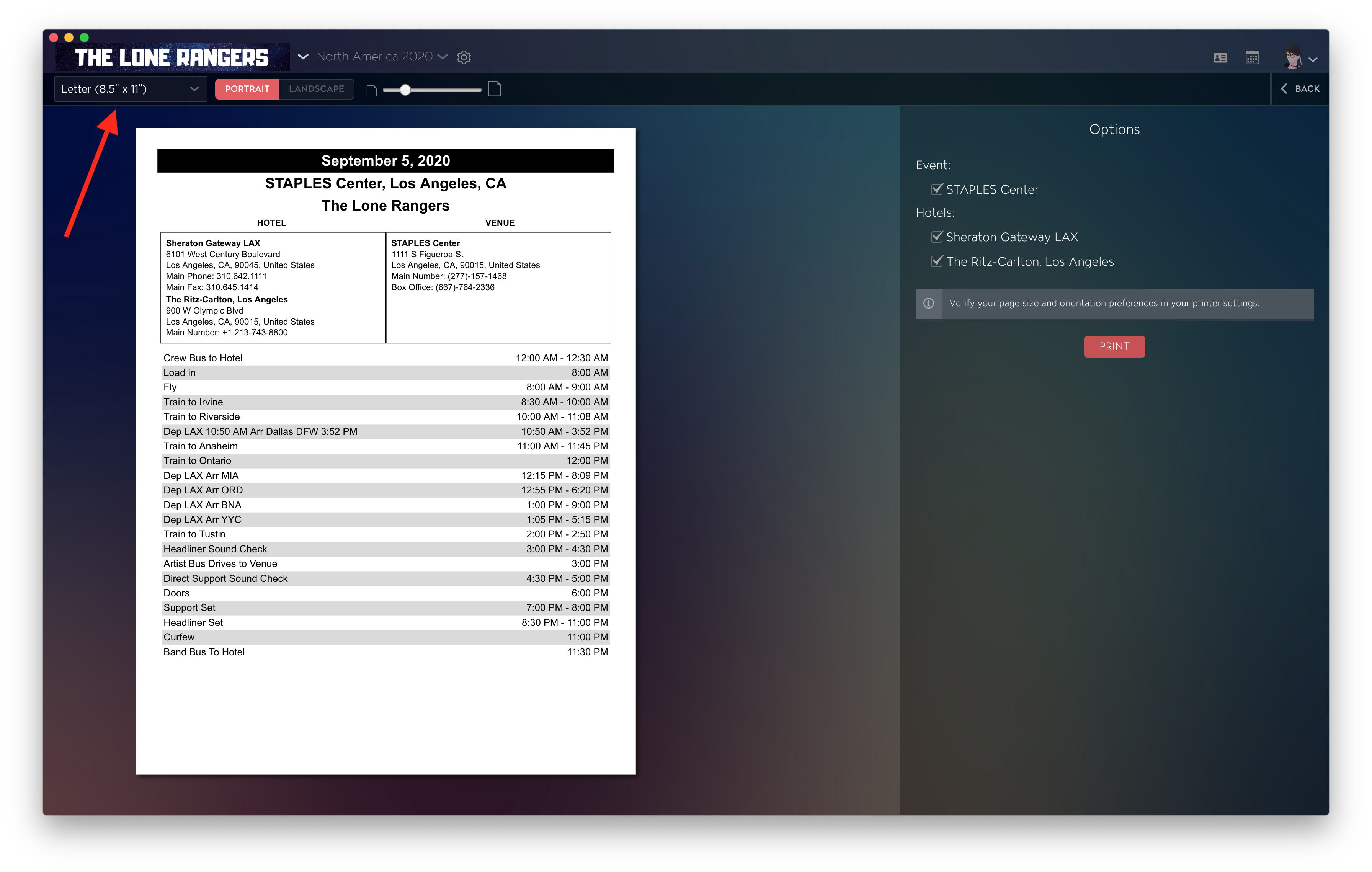
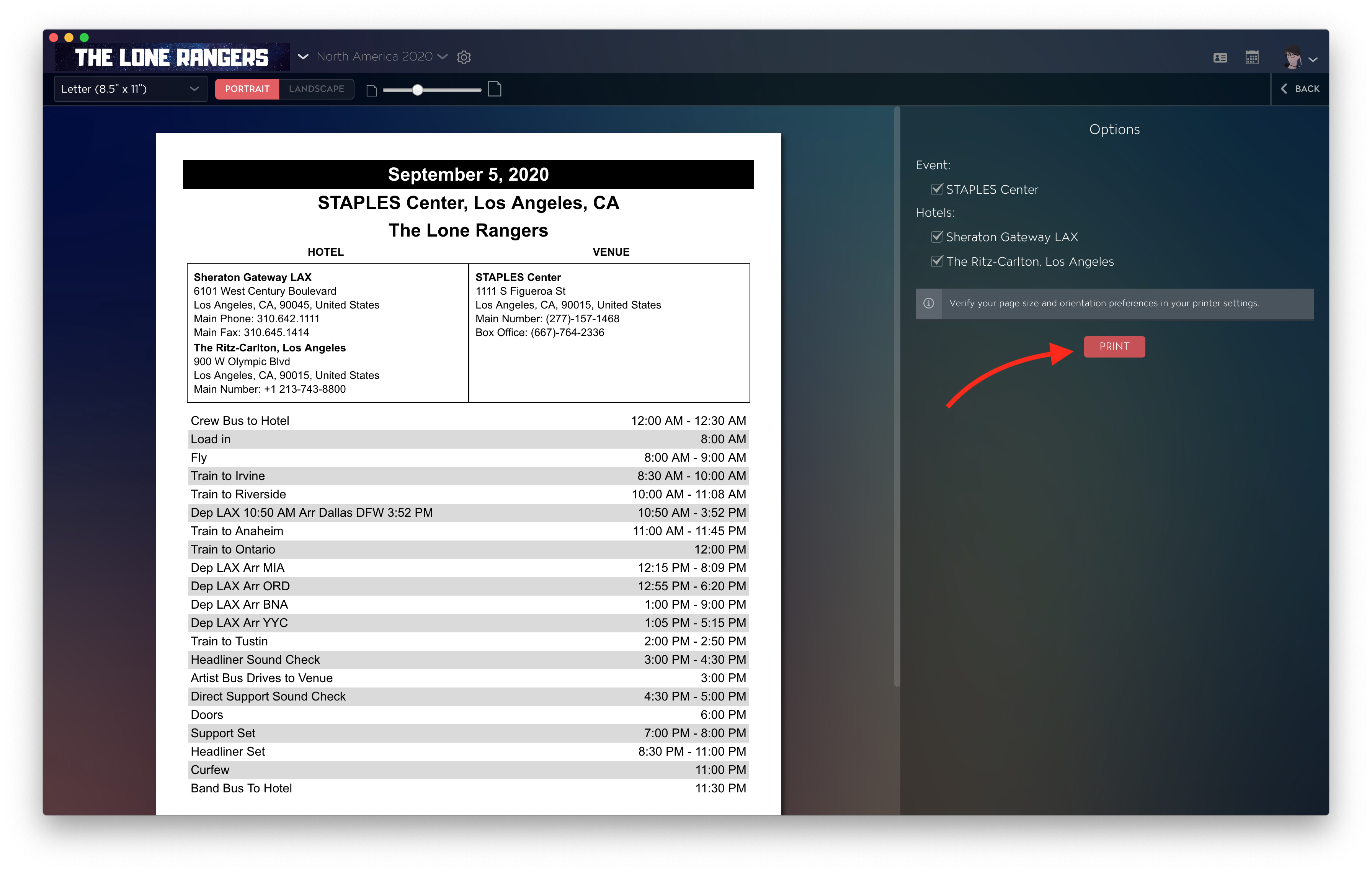
On the preview of your Print Report, you can select the orientation and page size for your export.
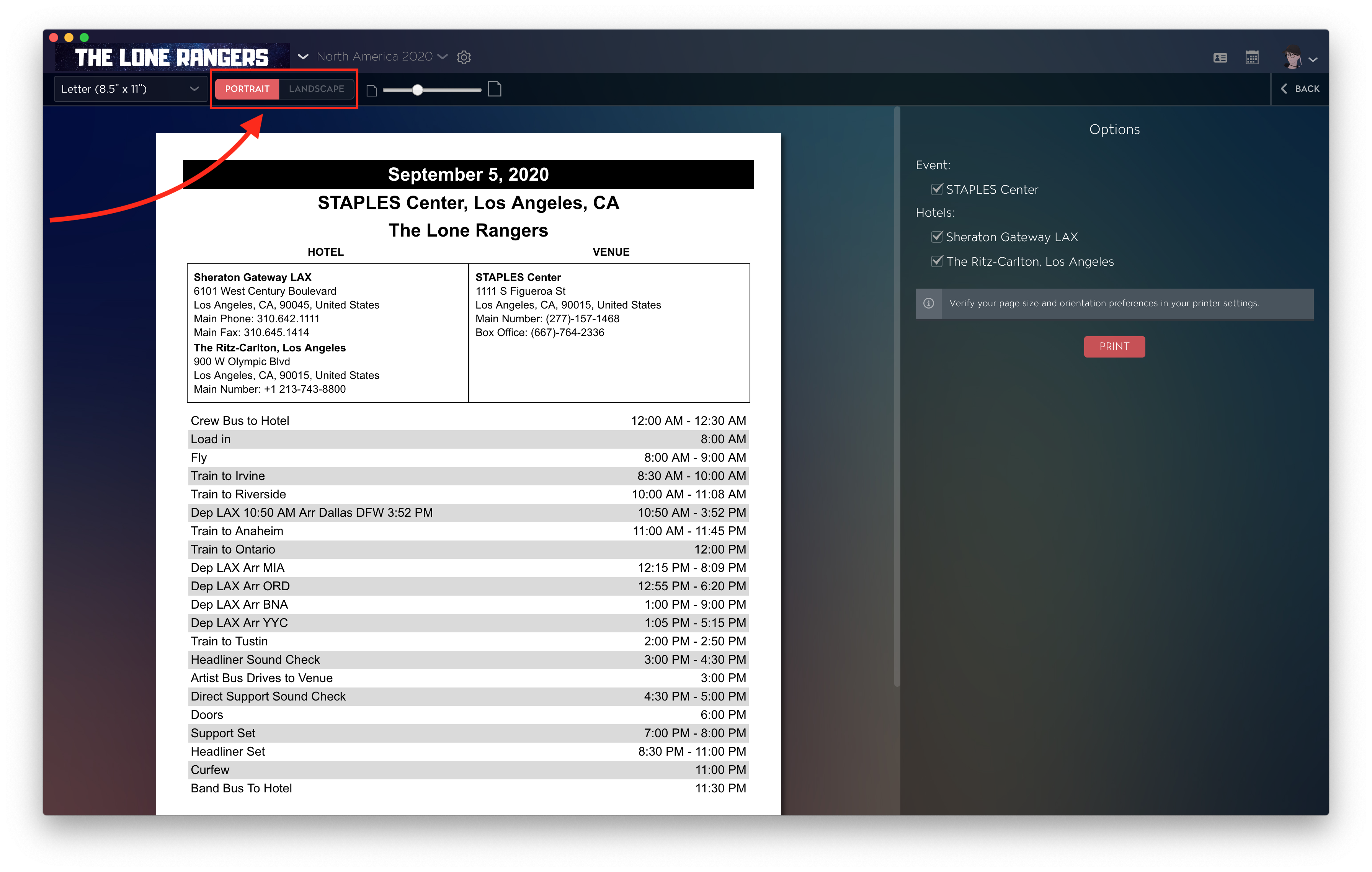
After previewing your Print Report with your date's information, click on the PRINT button on the right-hand side to open it up within your PDF viewer application.
Save a Print Report as a PDF in Preview
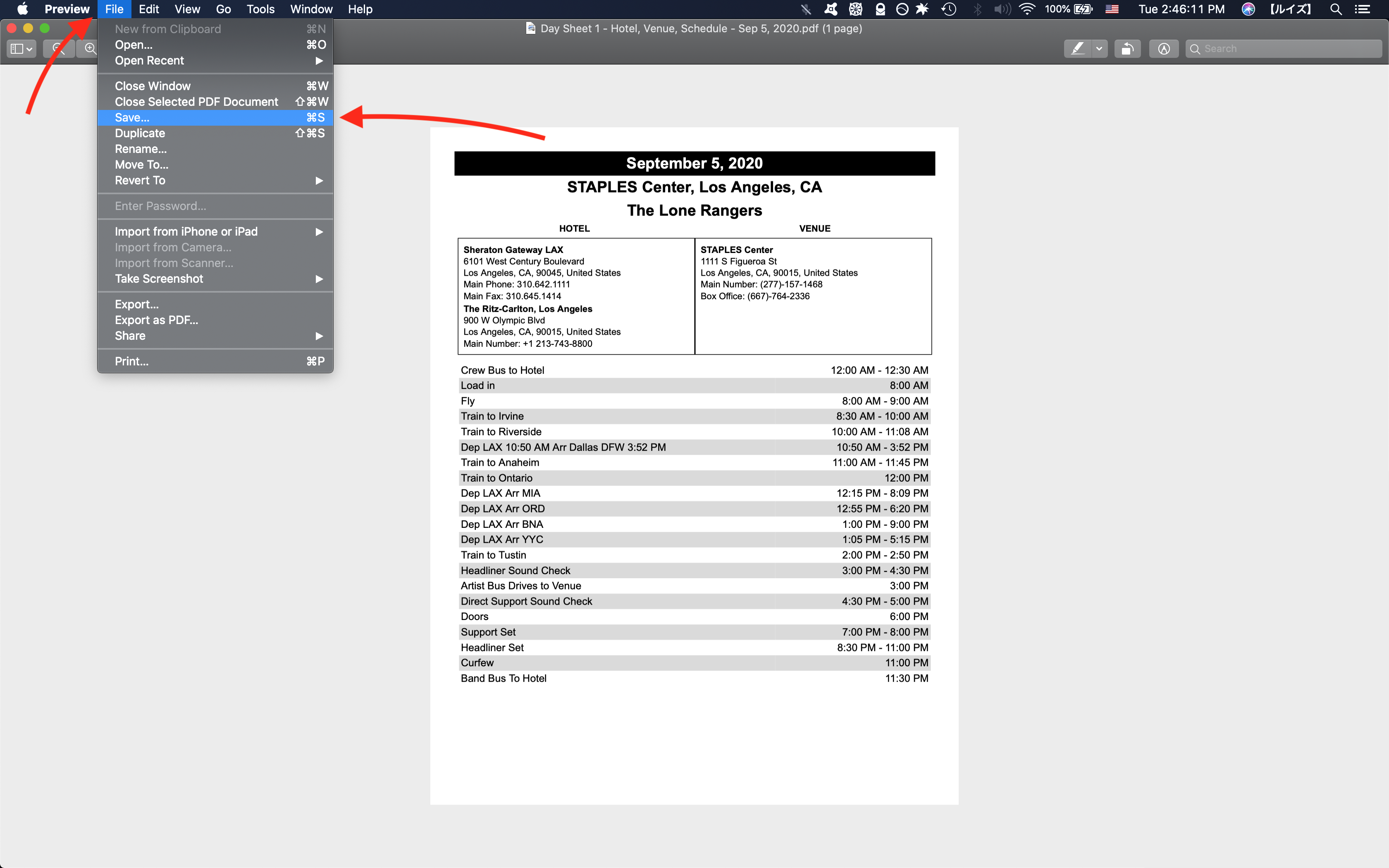
To export your PDF in Preview click on File at the top left then on Save.
Save a Print Report as a PDF in Adobe Acrobat
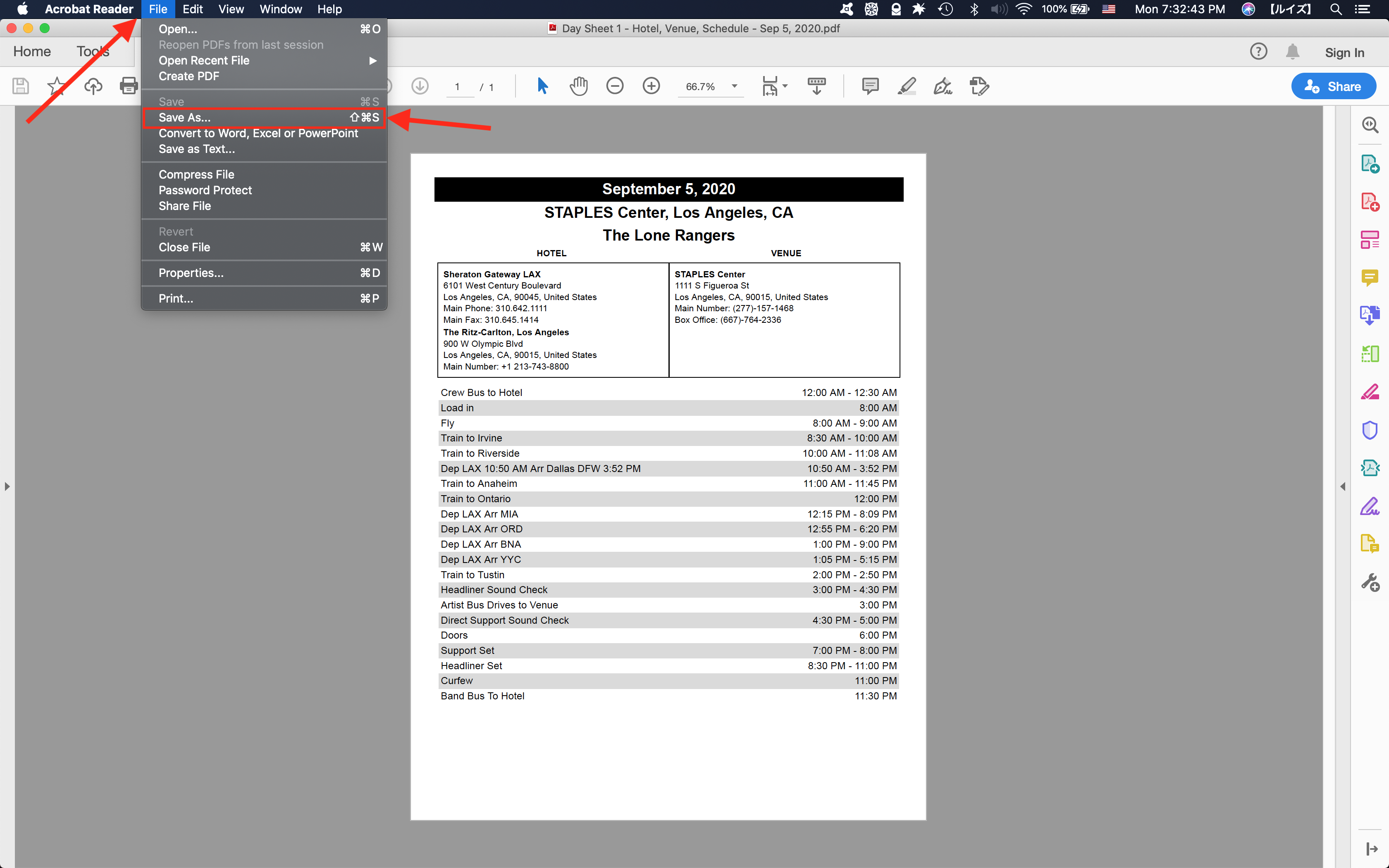
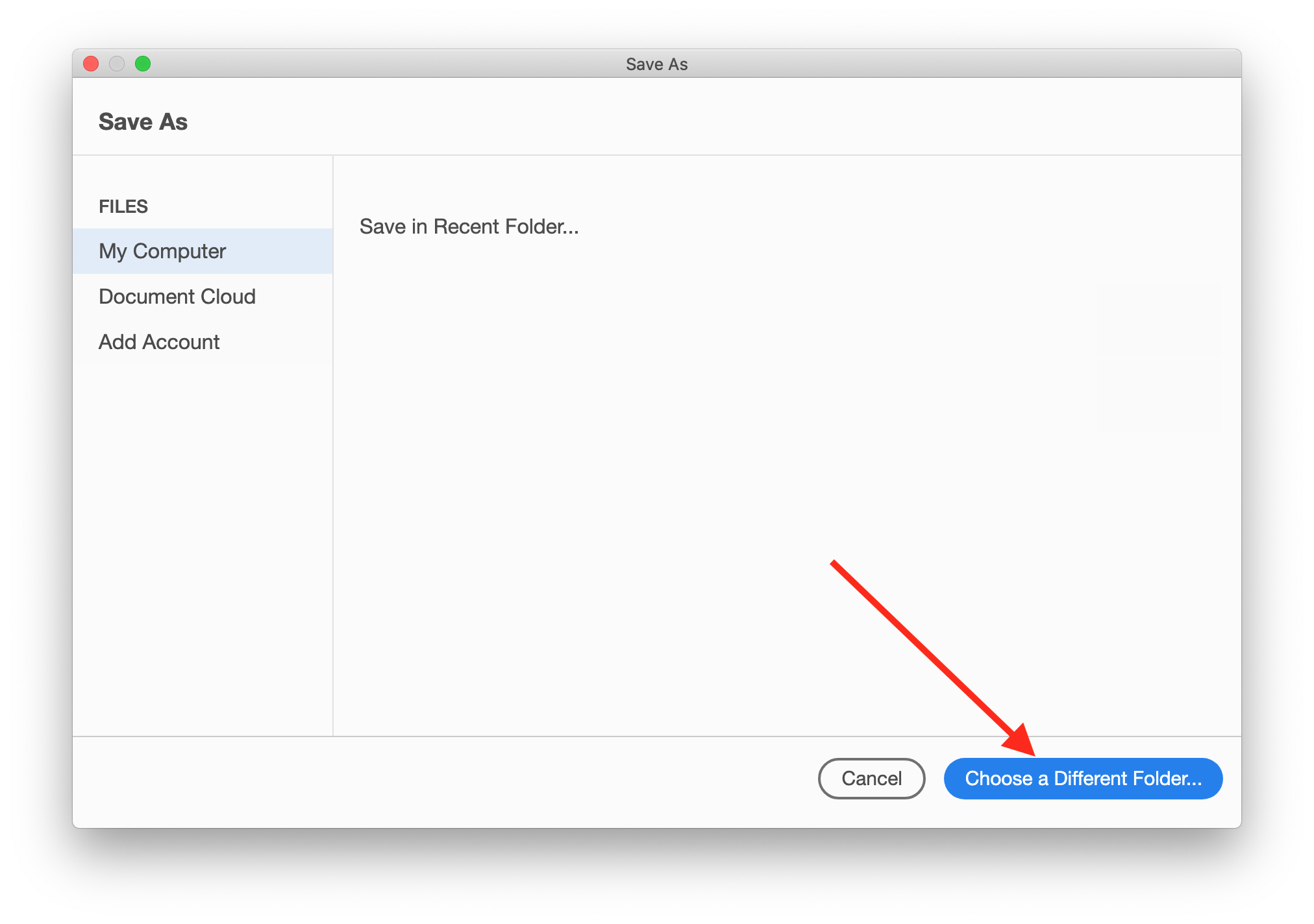
To export your PDF in Acrobat, click on File at the top left then on Save As... From here, click on the folder where you would like to save the PDF file or click on Choose a Different Folder at the bottom left if you don't see your preferred folder on your Recent Folder section.
Save a Template as a PDF in Microsoft Edge
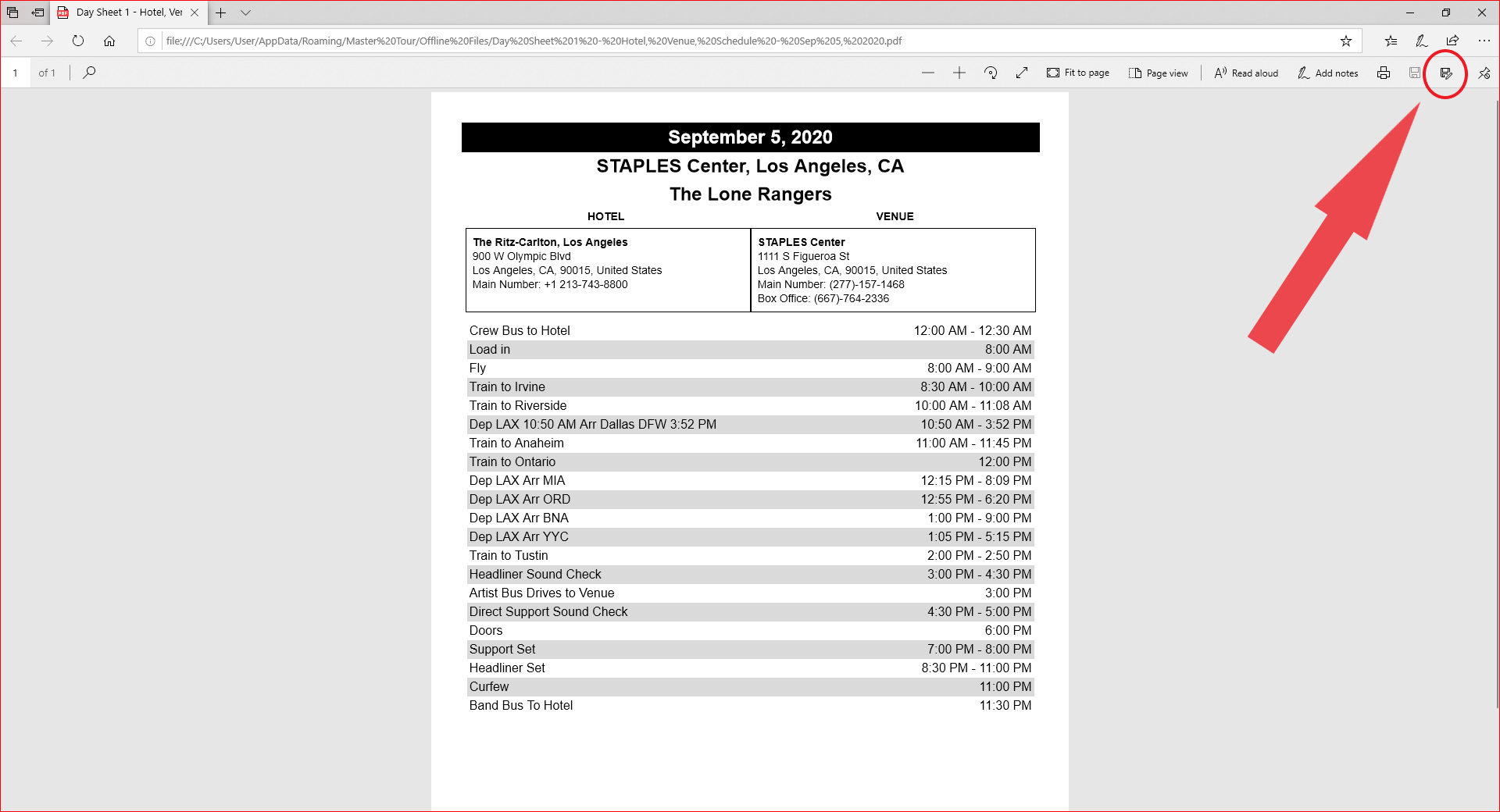
To save your PDF in Microsft Edge, click on the save icon at the top right corner of your screen then select on which folder would you like to save your exported file.
If you have any questions after following these instructions, please click here to open a Support Request or call +1-773-862-4246 to speak with a member of our Support Team between the hours of 10:00 am - 6:00 pm US Central Time (CT), Monday through Friday.