
Master Tour allows you to create Tasks on any Tour Date. Tasks are used to manage work items that need to be completed with deadlines and Visibility rules applied.
This article covers how to:
Locate the Tasks & Notes Section
Locate the Tasks & Notes Section
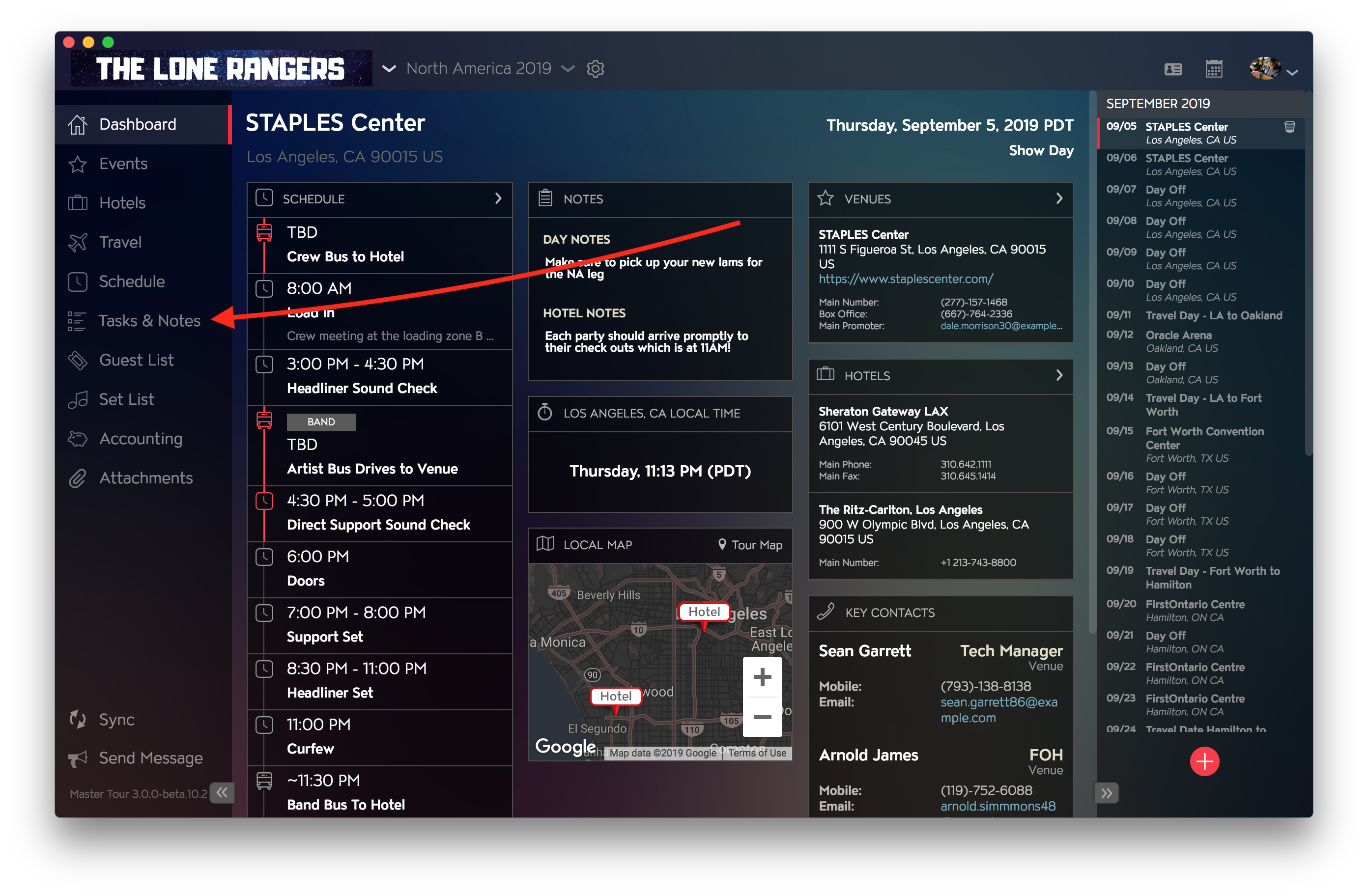
To get to the Tasks section of the Master Tour desktop application, just click a Tour Date on the right side, then click the Tasks and Notes section on the left side. You can also click Navigate>Tasks Notes in the top menu bar, use the Cmd-6 keyboard shortcut on MacOS, or use the Ctrl-6 keyboard shortcut on Windows.
Add Tasks
To add a task, click the + Add button shown here:
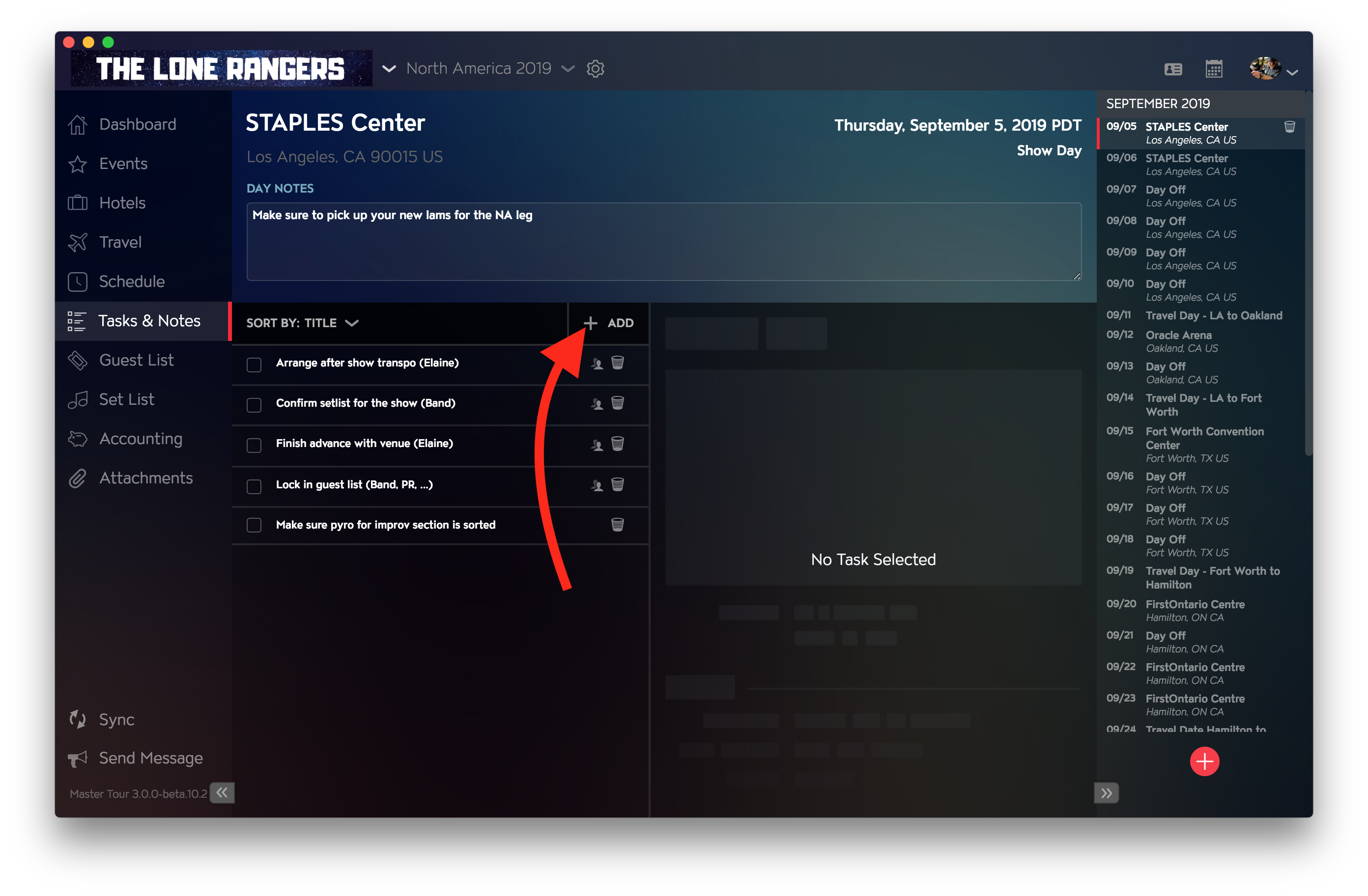
Then enter the Title of the Task, any Details you need, and set any Due Date and Visibility you might need. Click here for information on our Visibility functionality.
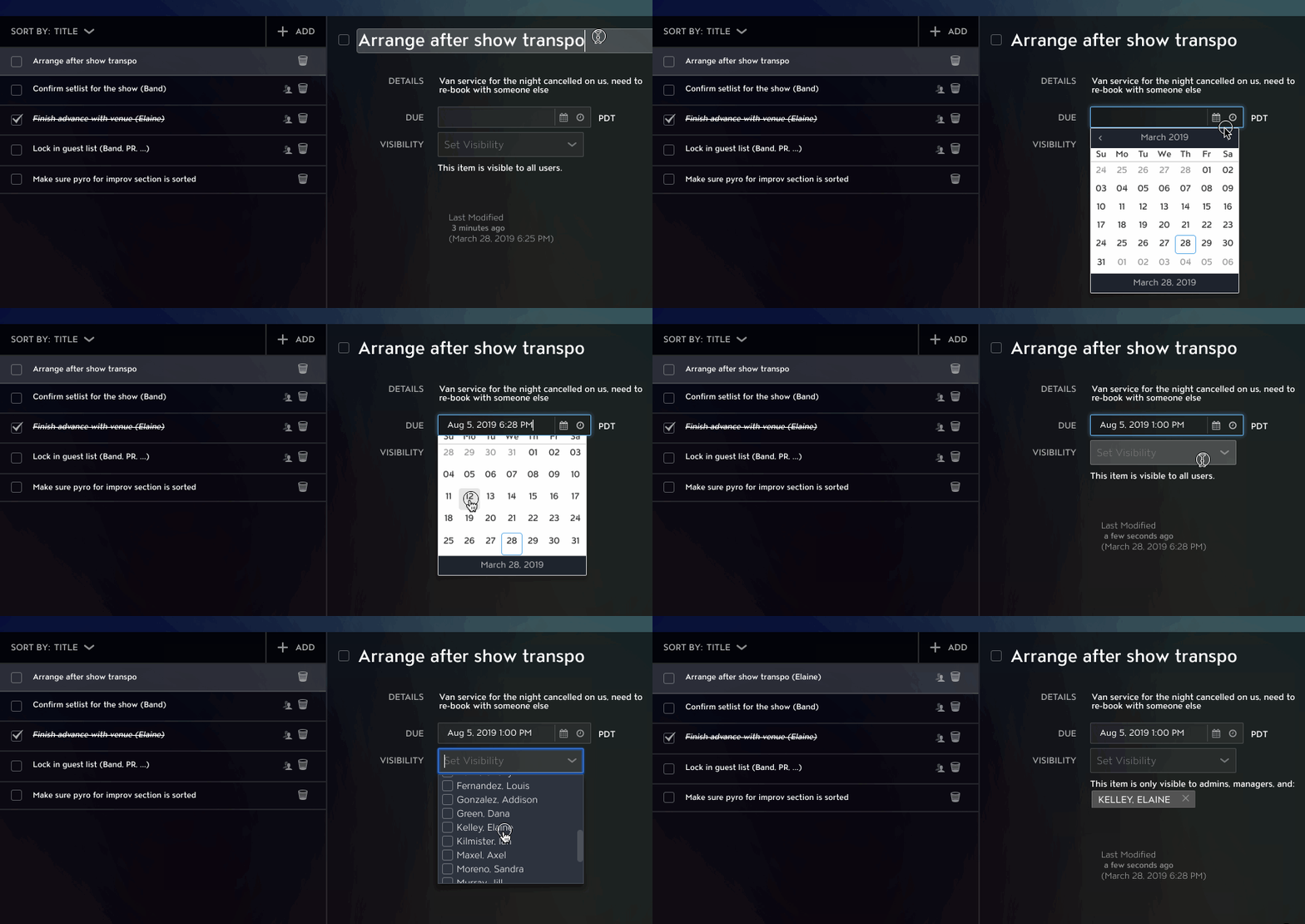
Due Dates are set by clicking on the calendar icon, then selecting a Date from the monthly calendar, and Due Times are set by clicking on the clock icon then selecting a Time from the dropdown list of times. You can also manually type in Dates and Times, but only in the same format shown in the Due field (varies depending on your computer's date and time settings).
Identify Overdue Tasks
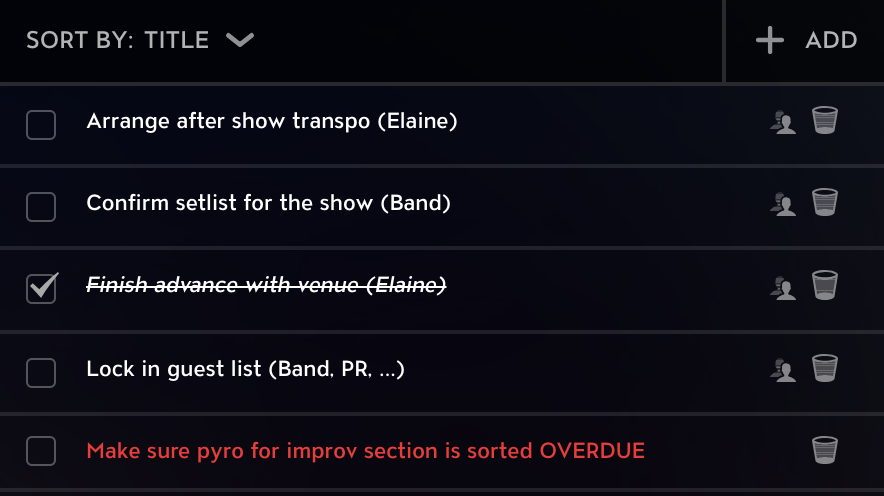
If a Task is past its Due Date and Time, it'll appear as Overdue in the desktop app, with red text and "OVERDUE" at the end of the title:
Mark Tasks Complete
To mark a Task as complete, click on the checkbox to the left of the Task's title. It will then check the checkbox and make the Task Title appear with a strikethrough text style.
Remove Tasks
To delete a Task, click on the trashcan icon to the right of the Task's title, then click the "Delete" text to confirm the deletion.
If you have any questions after following these instructions, please click here to open a Support Request or call +1-773-862-4246 to speak with a member of our Support Team between the hours of 10:00 am - 6:00 pm US Central Time (CT), Monday through Friday.