
You can hide Logistics Data Fields for Events using the Logistics Module in Master Tour 3. Hiding Data Fields will prevent the field from being displayed for other Venues. However, previously entered information for that data field on other Venues will still be visible.
This article covers:
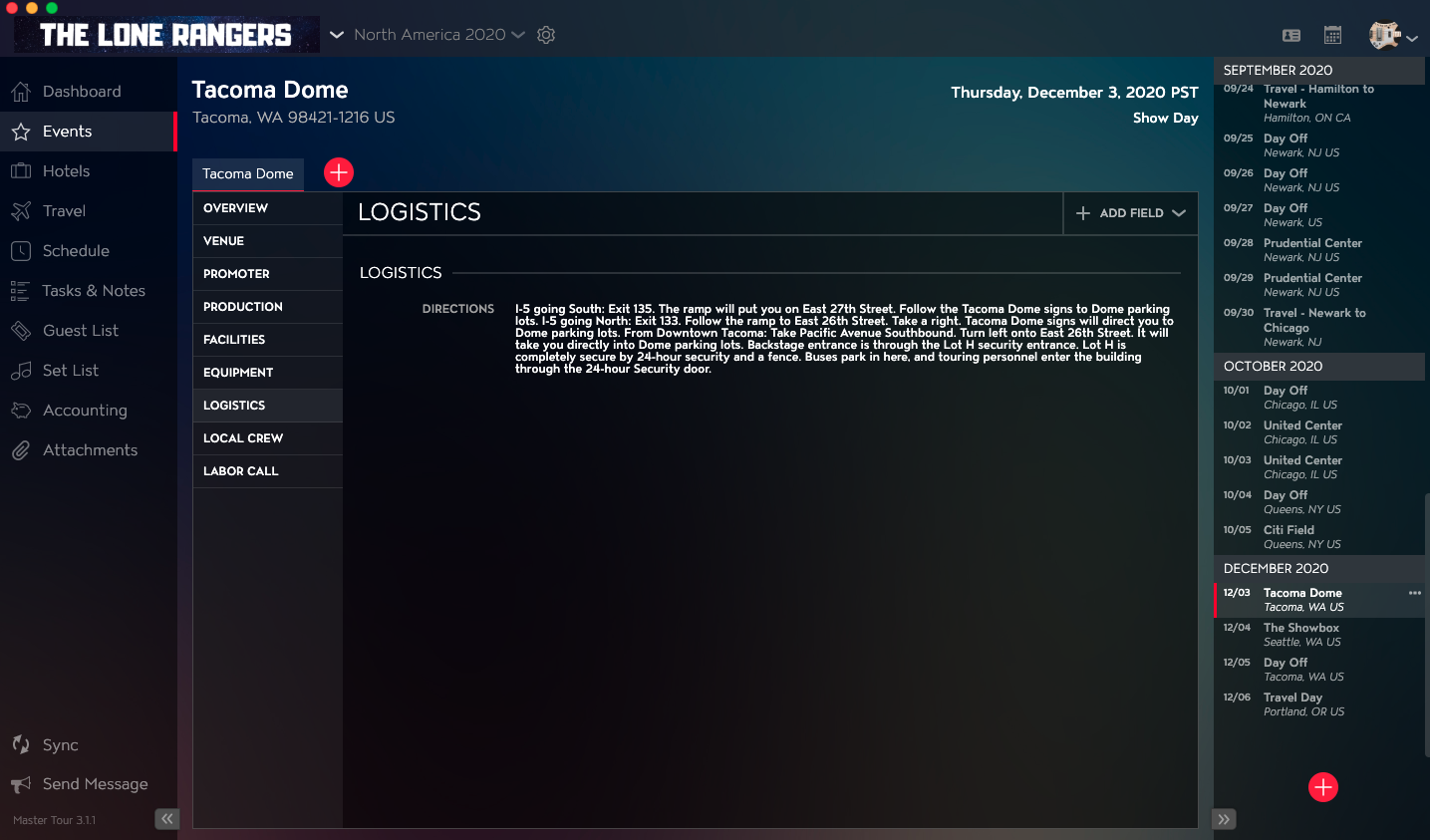
How to Navigate to the Logistics Section
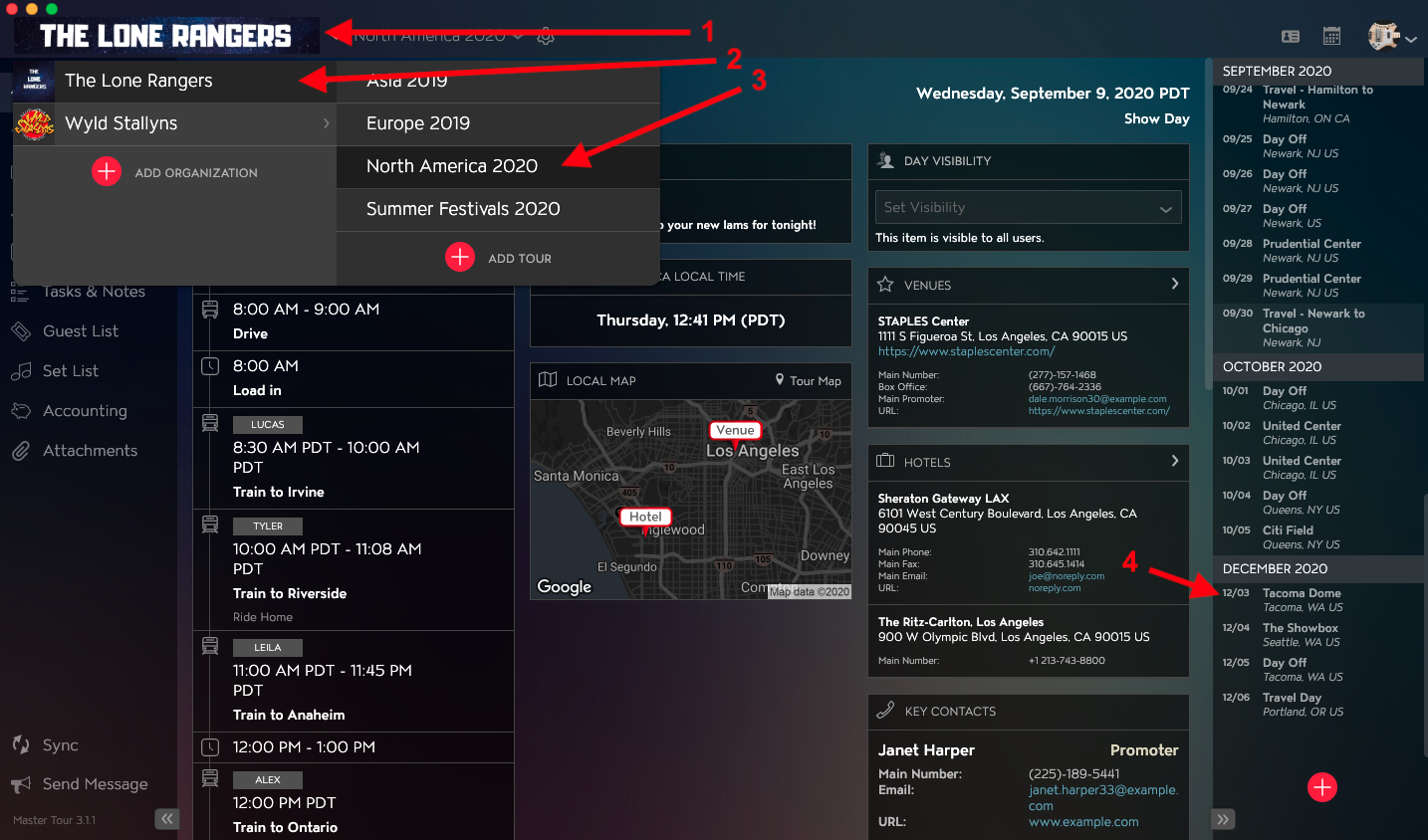
Within Master Tour, select the Tour Date that you would like to hide Logistics Data Fields in.
- Click on the Organization Selector dropdown menu in the upper left of the application.
- Select an Organization.
- Select a Tour from the Tour Selector dropdown menu.
- Select a Tour Date in the Tour Date List on the right of the application.
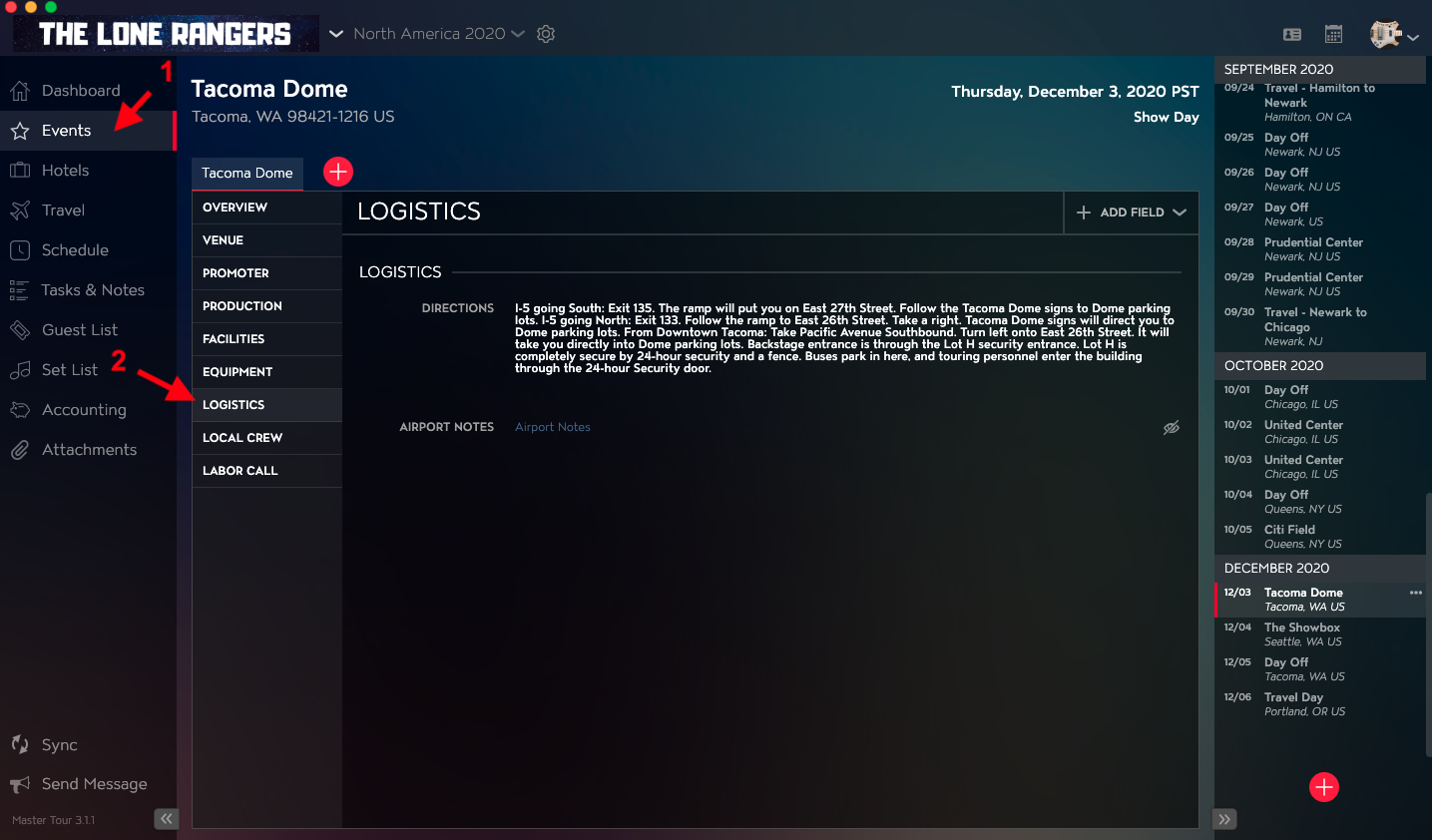
- Click on Events in the left menu.
- Click on Logistics in the Events menu.
How to Hide Logistics Data Fields
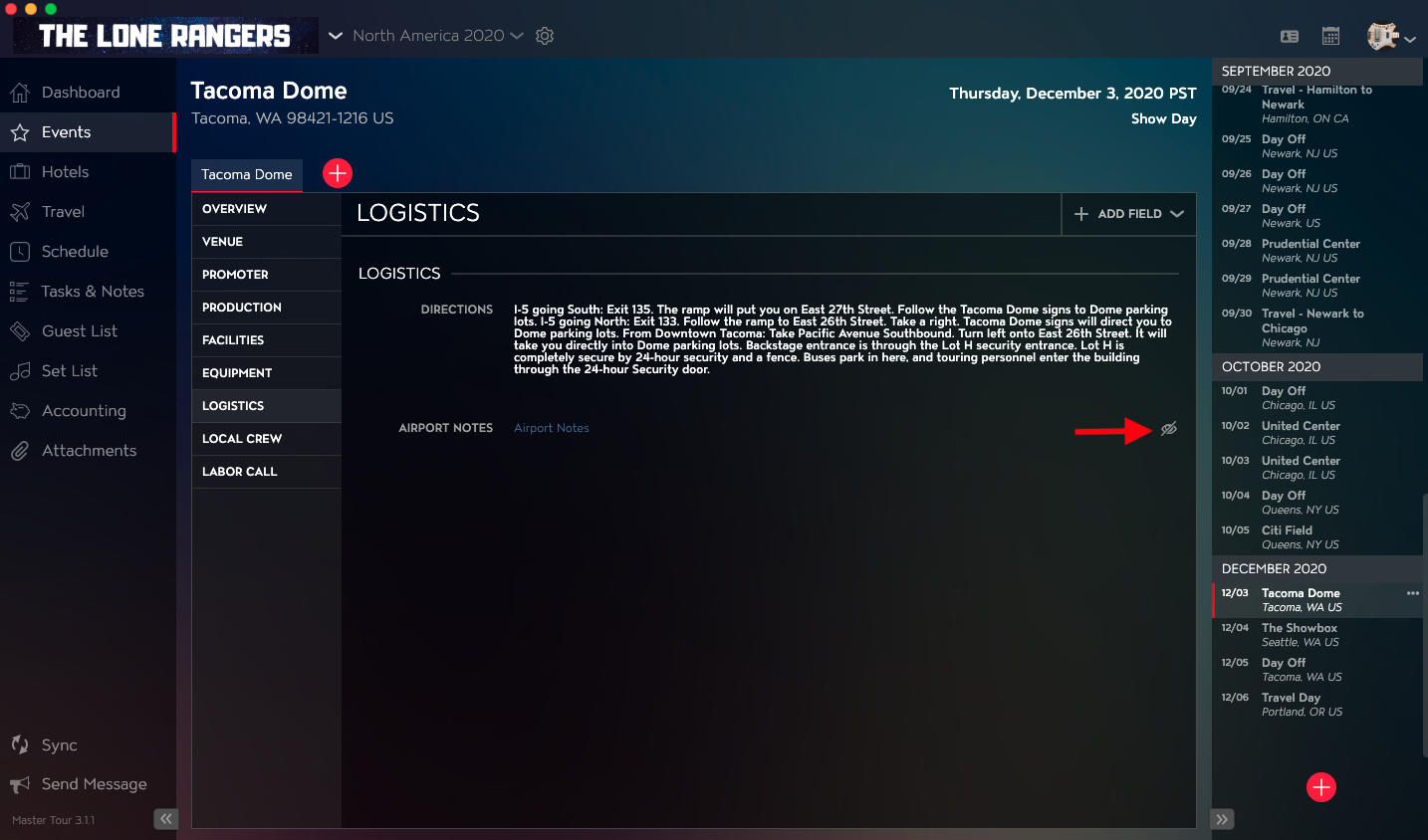
Click on the Hide Field icon on the right of the data row that you would like to hide. Note that a Data Field must be empty in order for this icon to appear.
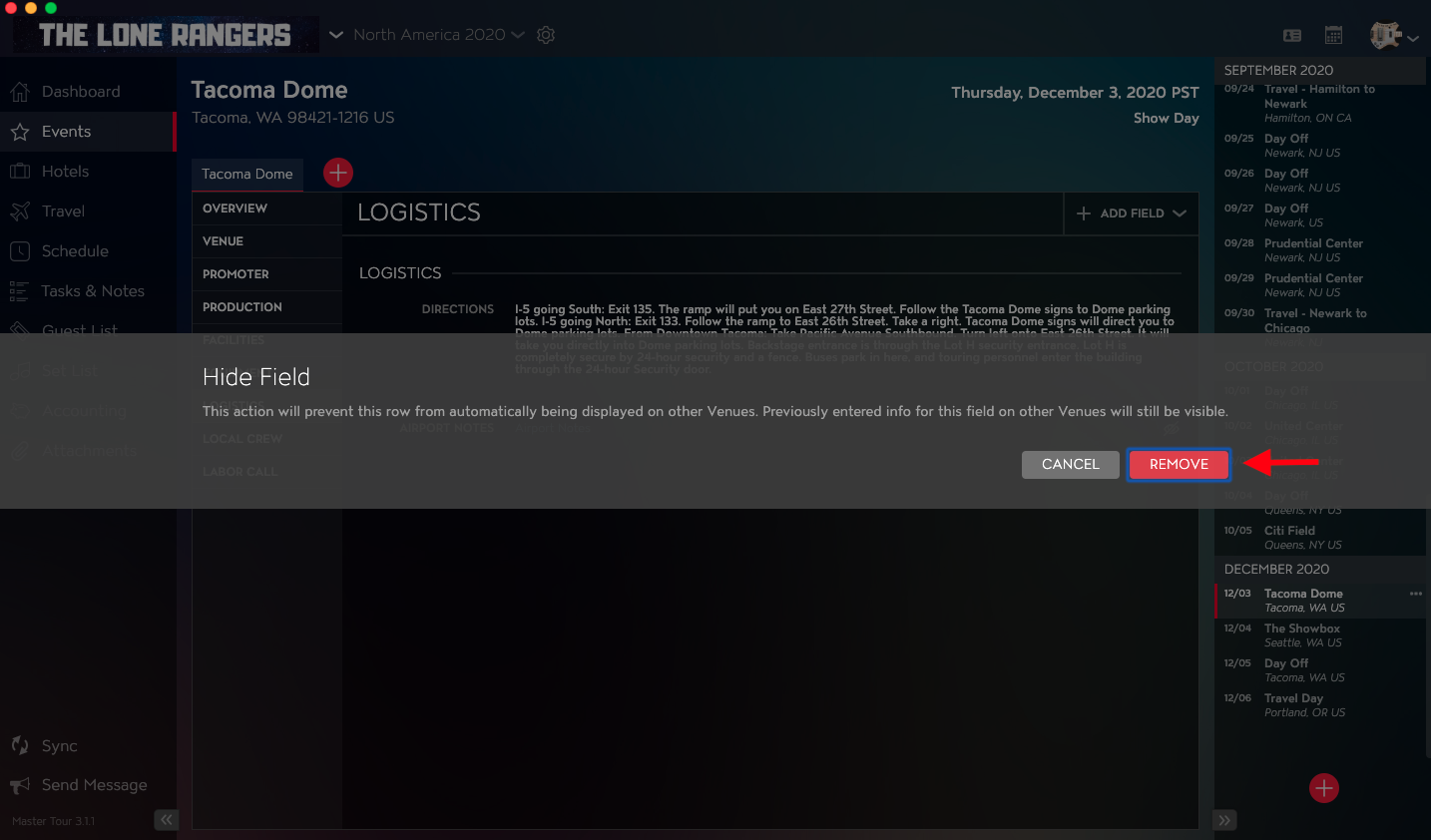
Next, click on the Remove button to confirm that you would like to hide the field.
You will then see the data field has been removed from view.
If you have any questions after following these instructions, please click here to open a Support Request or call +1-773-862-4246 to speak with a member of our Support Team between the hours of 10:00 am - 6:00 pm US Central Time (CT), Monday through Friday.