
If you need to remove Gear from your tour, you can delete Gear records from Master Tour's Gear Module.
This article covers:
How to Navigate to Gear
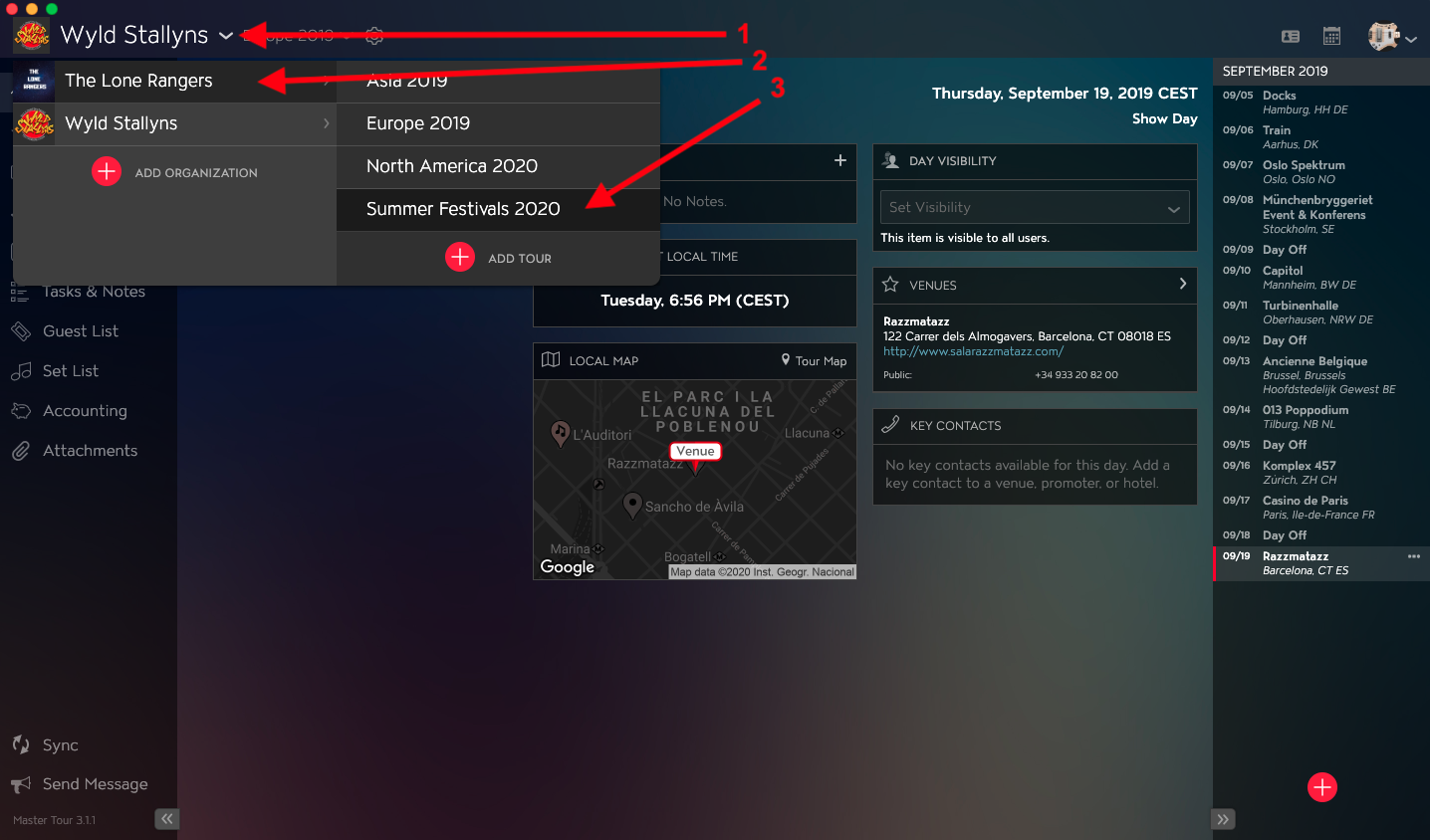
Within Master Tour, select the Tour that you would like to remove Gear from.
- Click on the Organization Selector dropdown menu.
- Select an Organization.
- Select a Tour from the Tour Selector dropdown menu.
Next:
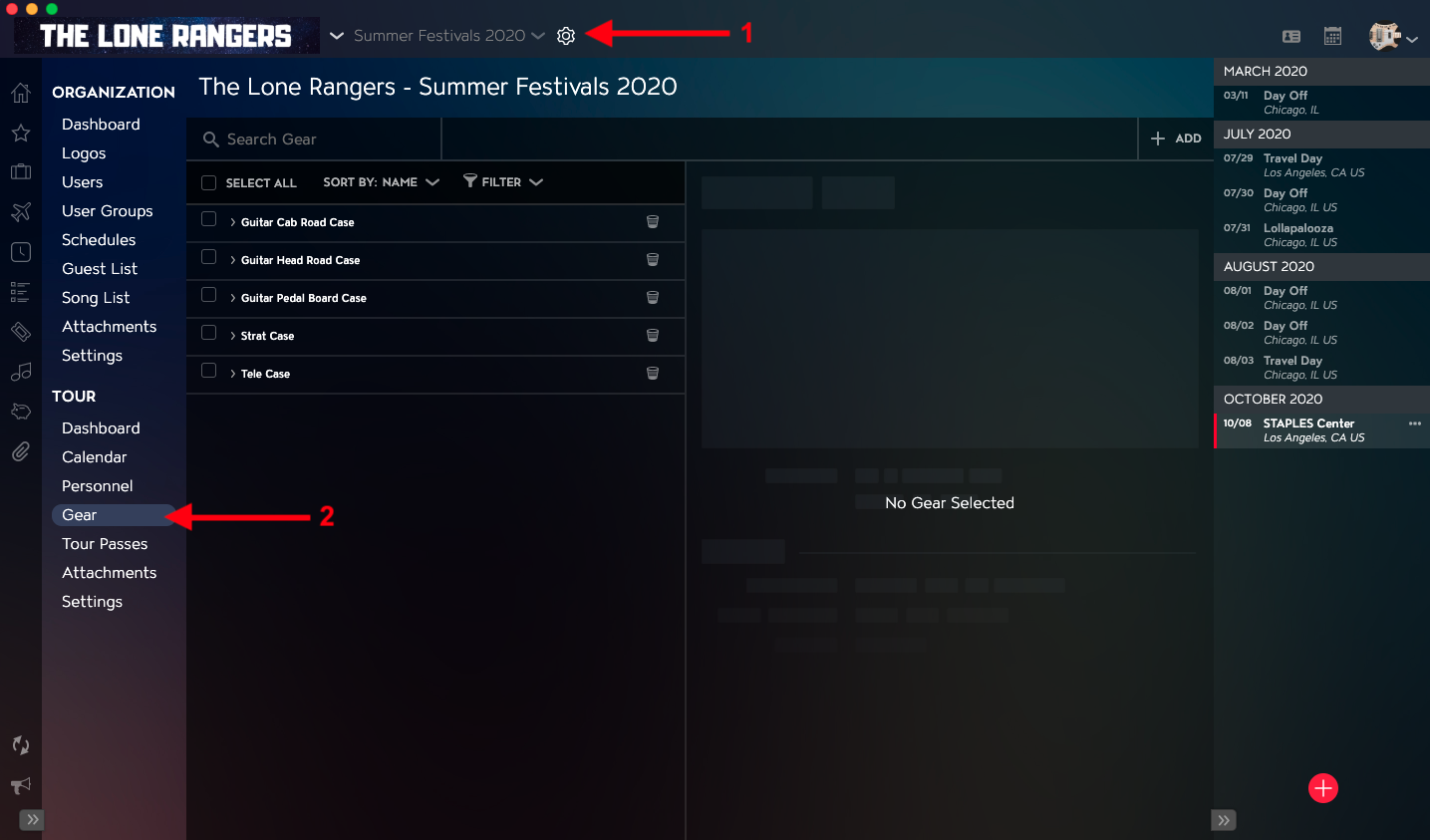
- Click on the Gear icon to the right of the Tour Name at the top of the application.
- Click into the Gear section within the Tour Section in the left menu.
How to Remove Gear
Note: If you delete a Gear Item that has Gear Items nested inside of it, you will only Delete the top-level Gear Item.
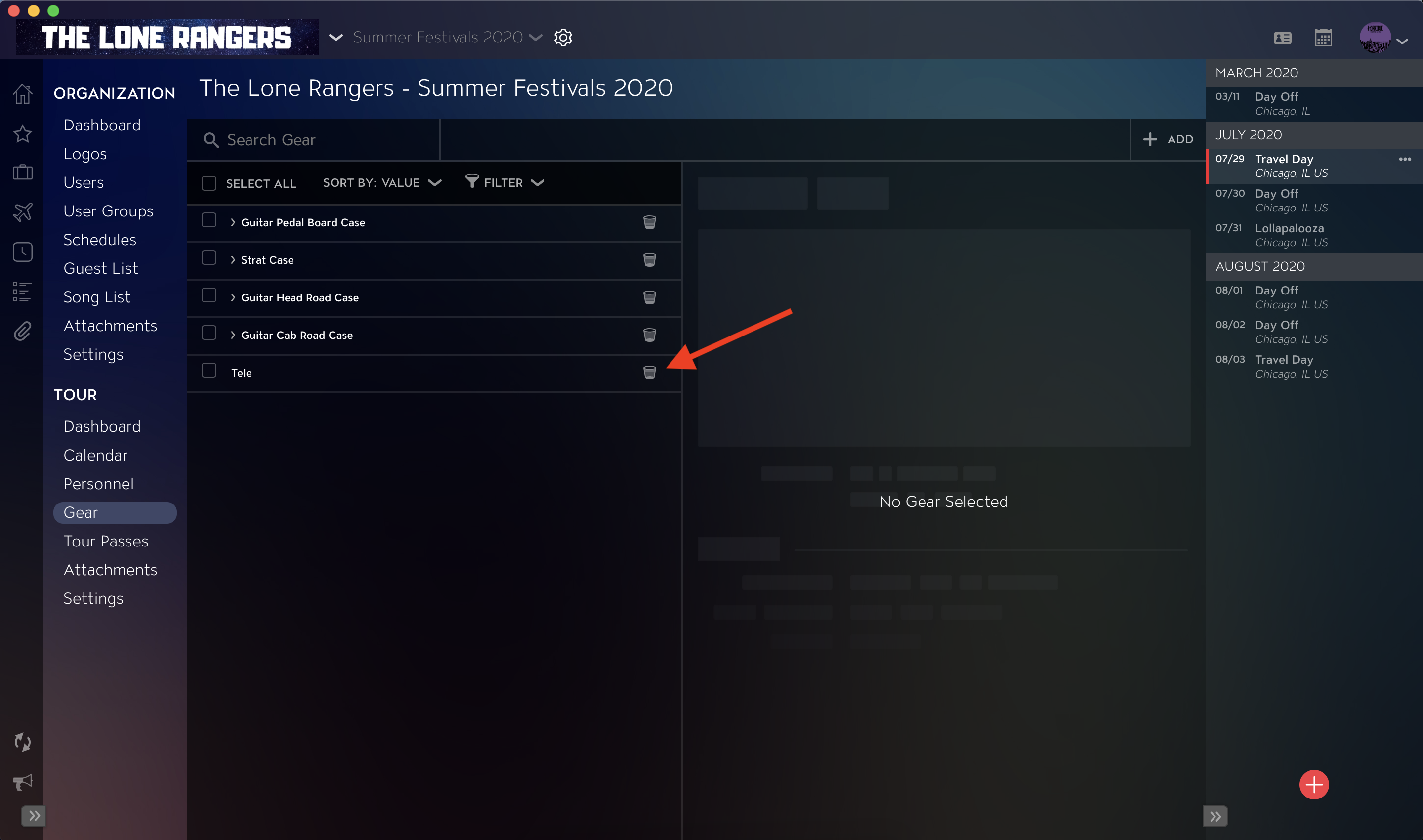
To remove Gear directly from the Gear List, click on the Trash icon associated with the Gear item.
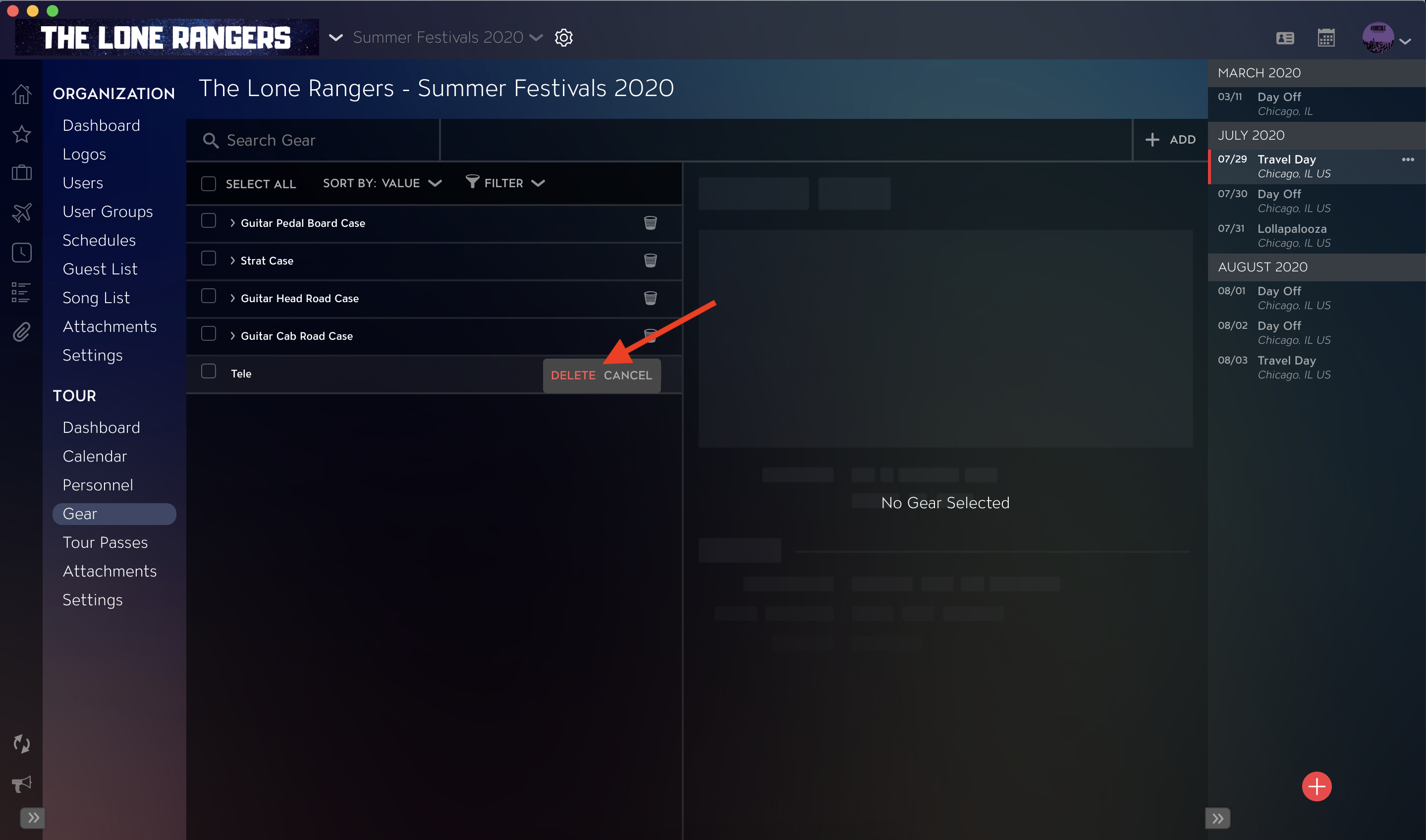
Next, click on Delete text in the pop-out menu to confirm that you would like to remove the Gear.
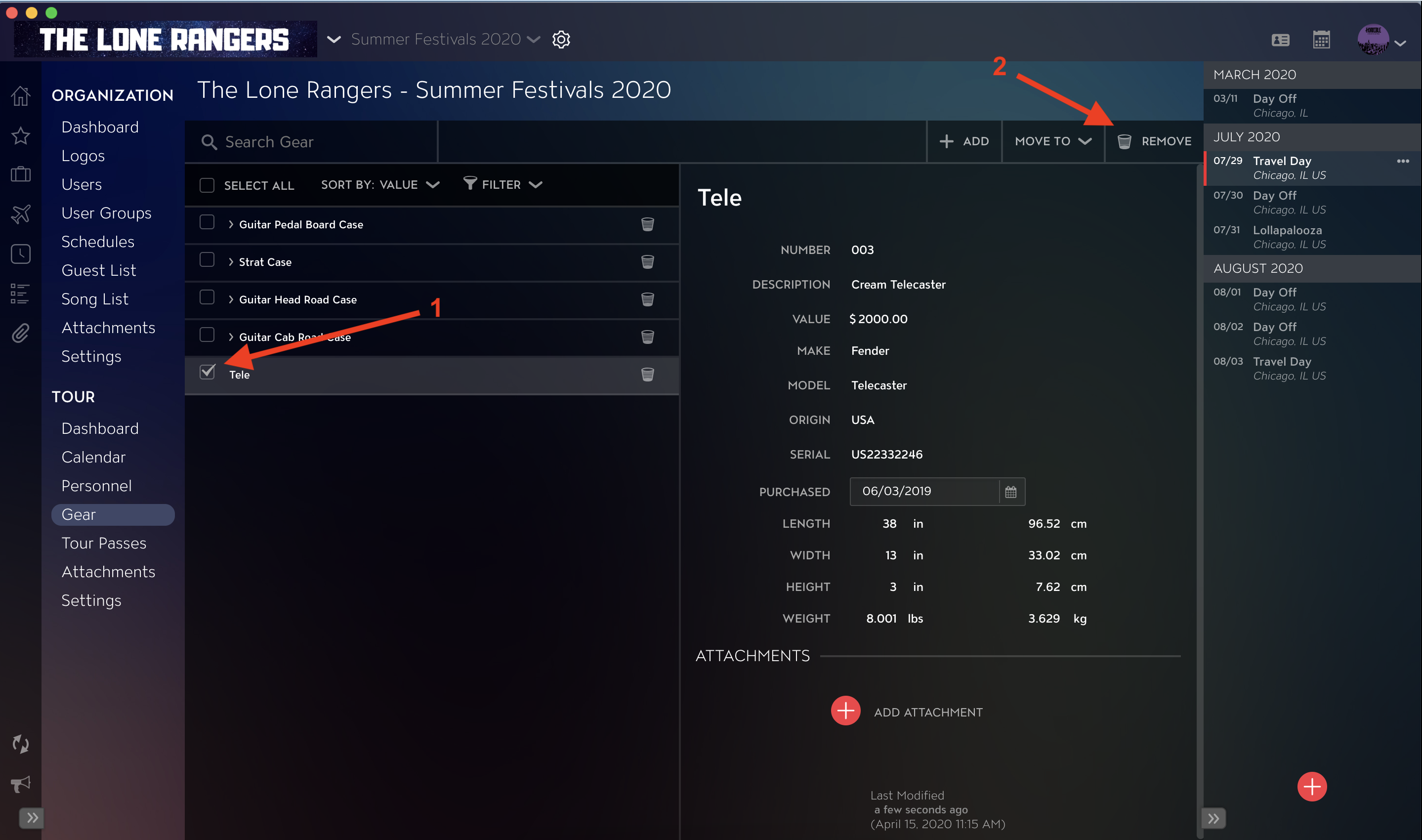
To remove a Gear Item from the Gear Details:
- Select Gear Item that you would like to Delete.
- Click on the Remove button in the top right of the Gear Details.
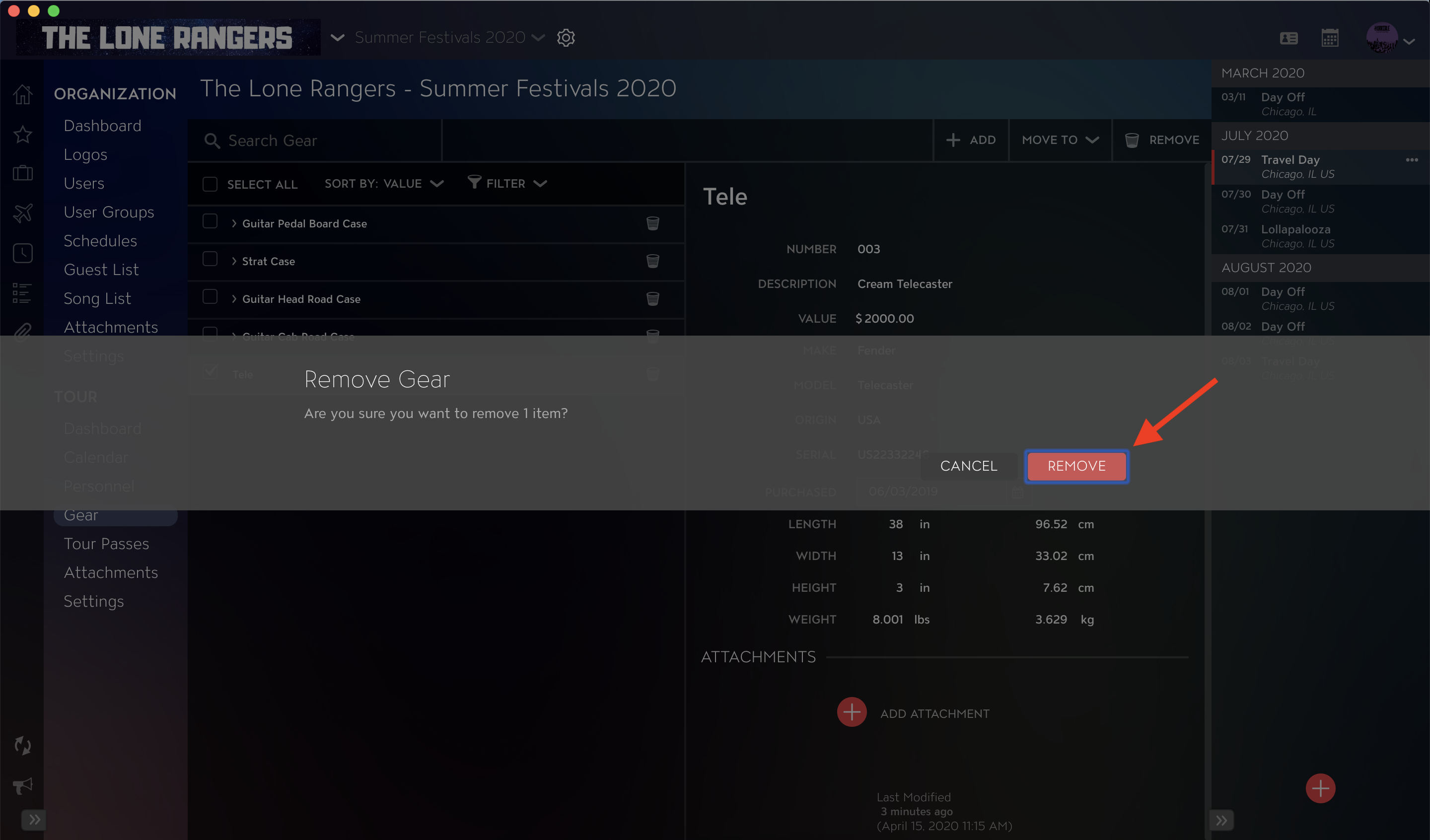
Next, click on the Remove button to confirm that you would like to delete the item.
How to Remove Gear in Bulk
Note: If you delete a Gear Item that has Gear Items nested inside of it, you will only Delete the top-level Gear Item.
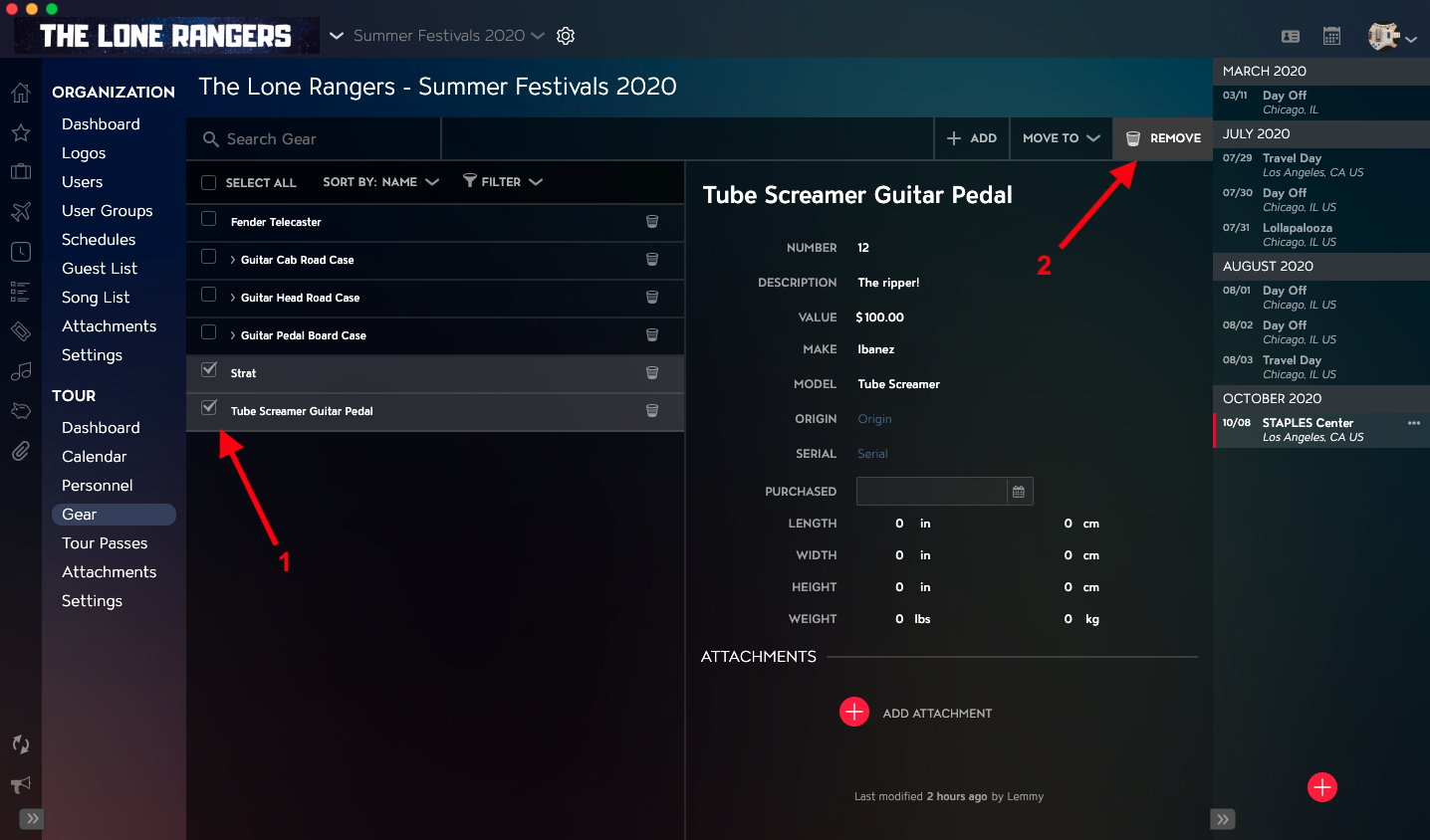
- Select Gear Items that you would like to Delete.
- Click on the Remove button in the top right of the Gear Details.
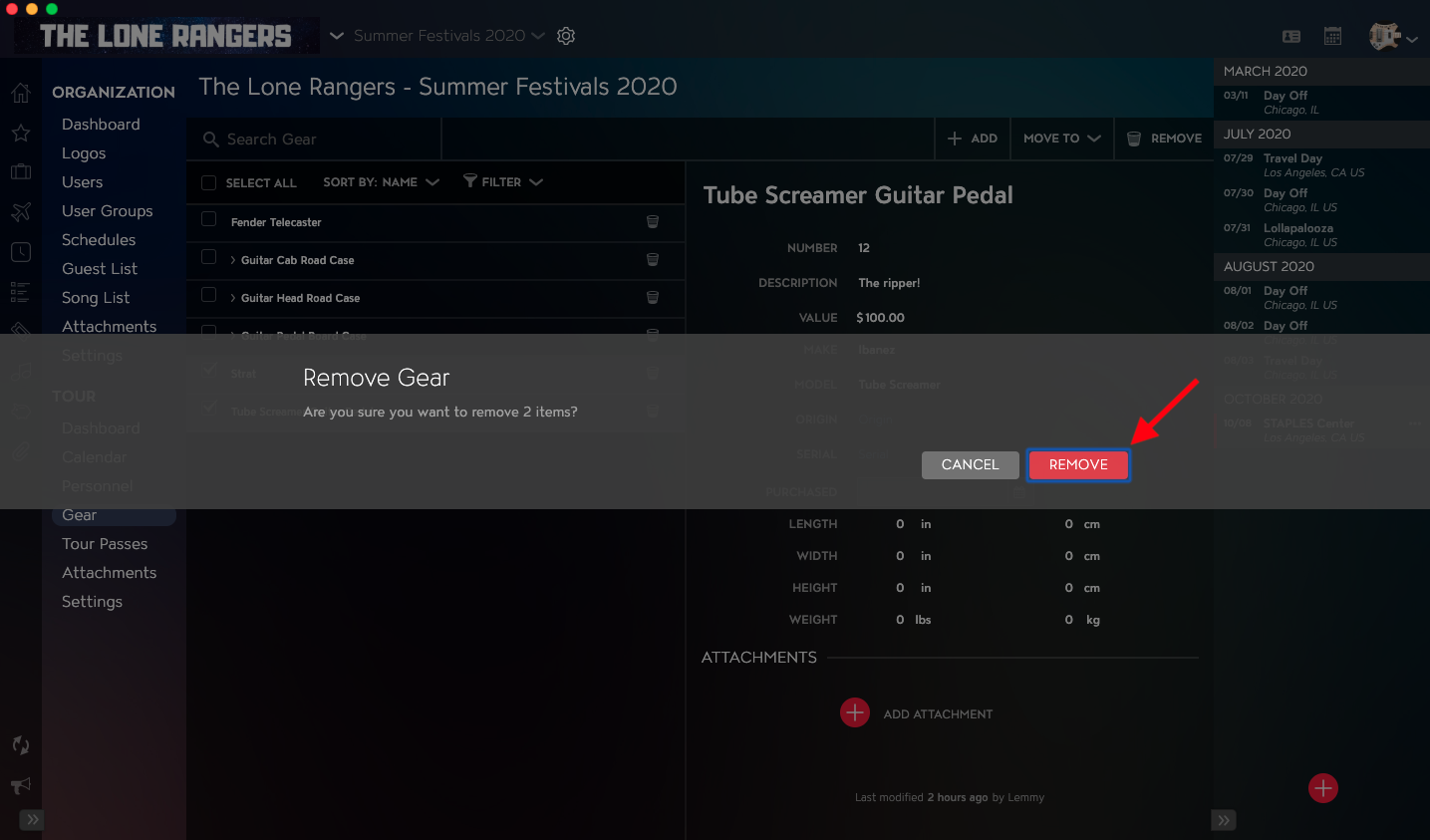
Next, click on the Remove button to confirm that you would like to delete the item.
If you have any questions after following these instructions, please click here to open a Support Request or call +1-773-862-4246 to speak with a member of our Support Team between the hours of 10:00 am - 6:00 pm US Central Time (CT), Monday through Friday.