
You can view Tour Attachments and see details such as File Size, Visibility, Tags, and the Date Added using the Tour Attachments Module in Master Tour 3.
This article covers:
- How to Navigate to Tour Attachments
- How to View Tour Attachments
- How to View Tour Attachment Details
How to Navigate to Tour Attachments
Within Master Tour, select the Tour that you would like to view Tour Attachments in.
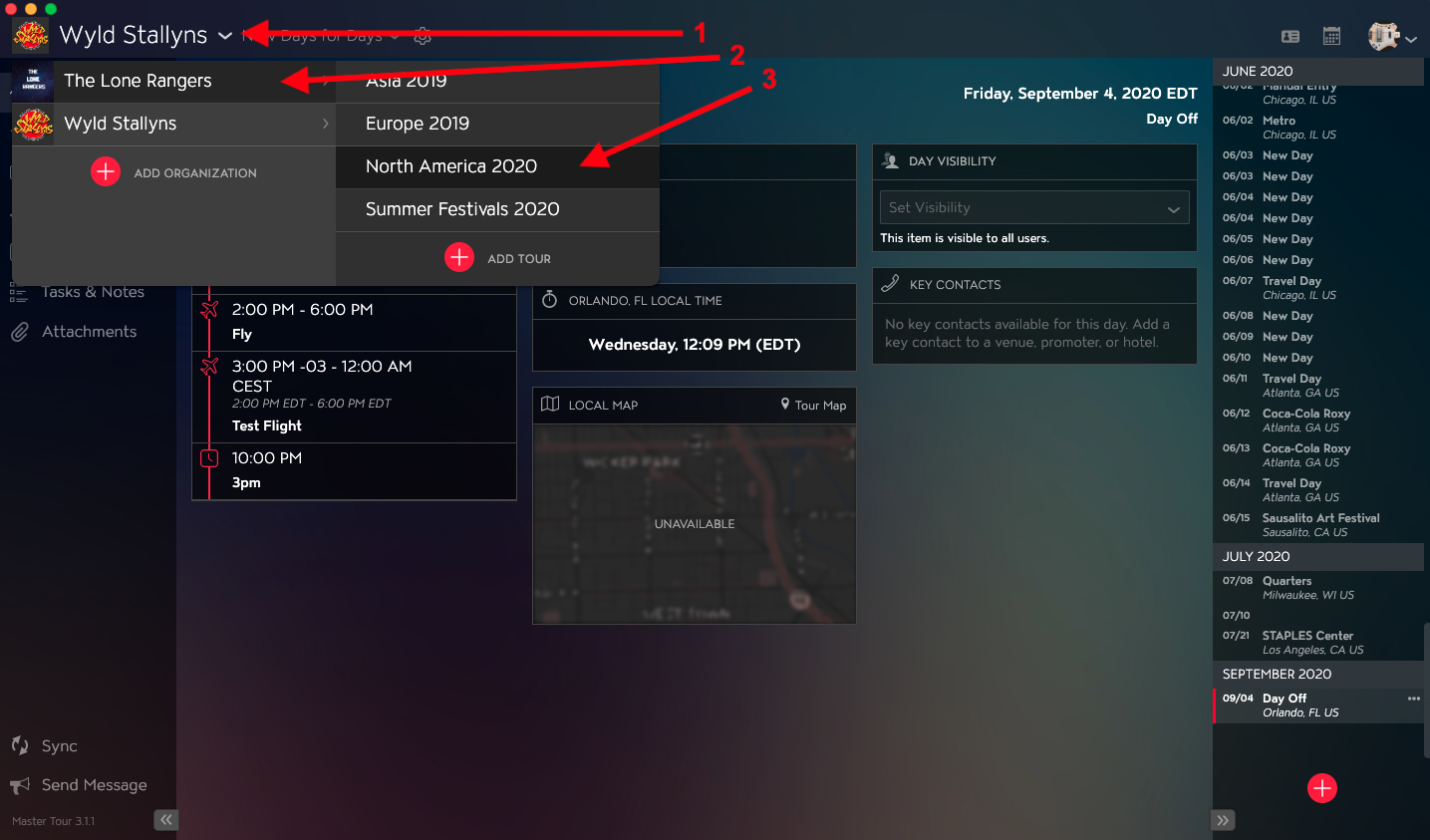
- Click on the Organization Selector dropdown menu.
- Select an Organization.
- Select a Tour from the Tour Selector dropdown menu.
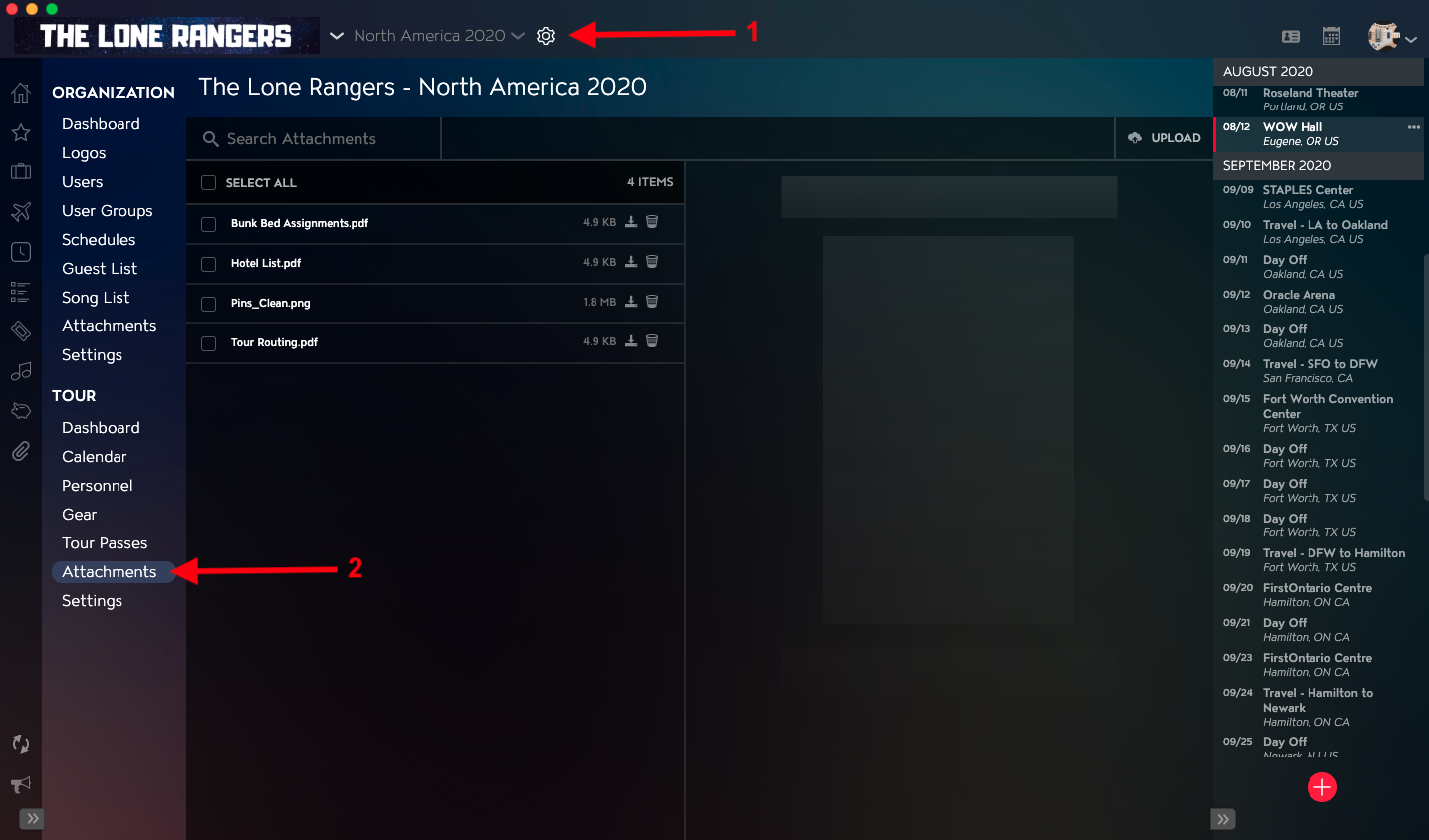
- Click on the Gear Icon to the right of your Tour Name at the top of the application.
- Click into the Attachments Section within Tour Settings in the left menu.
How to View Tour Attachments
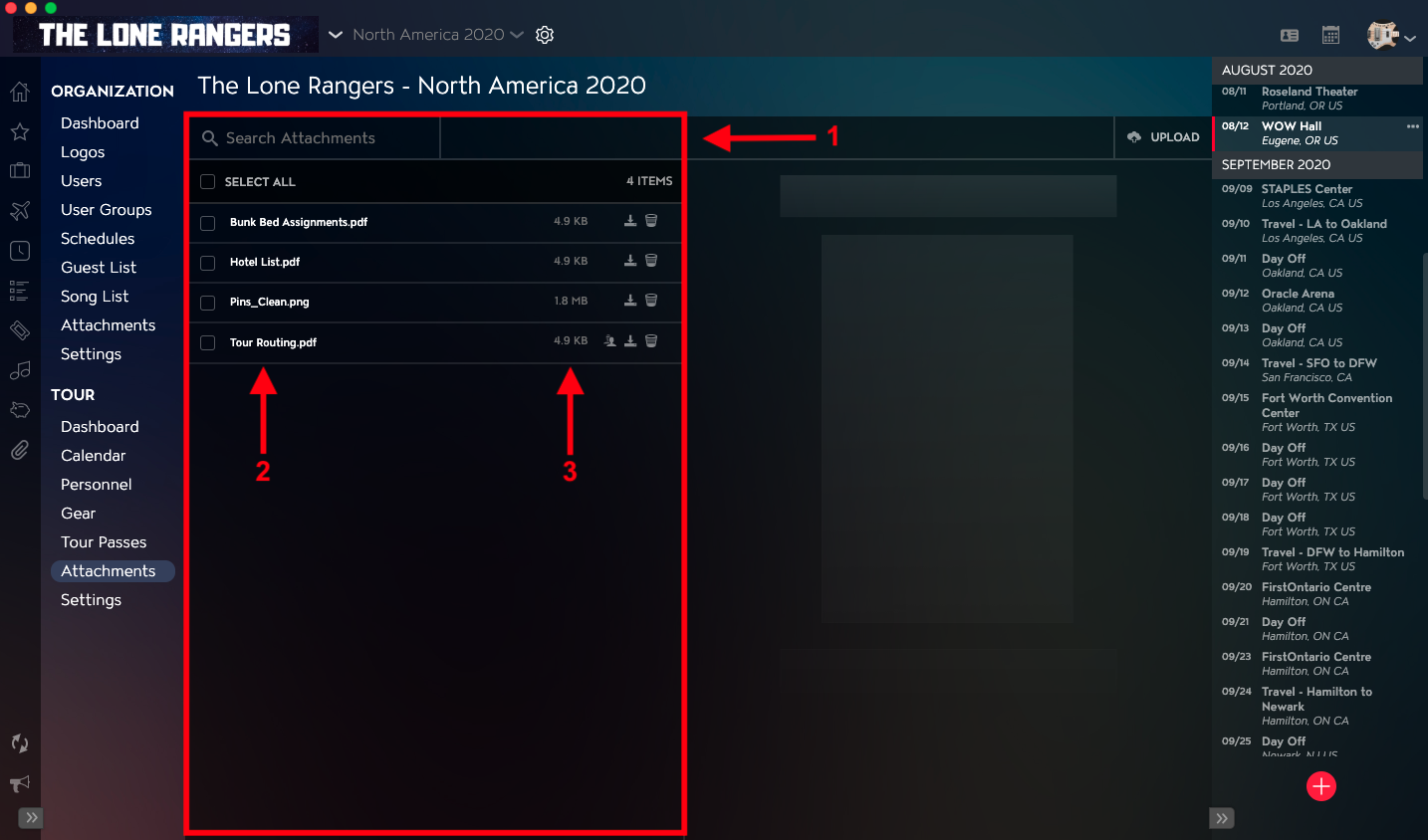
- The Tour Attachments List is located in the left column.
- Attachments are sorted by Name.
- The File Size is listed for each Attachment.
How to View Tour Attachment Details
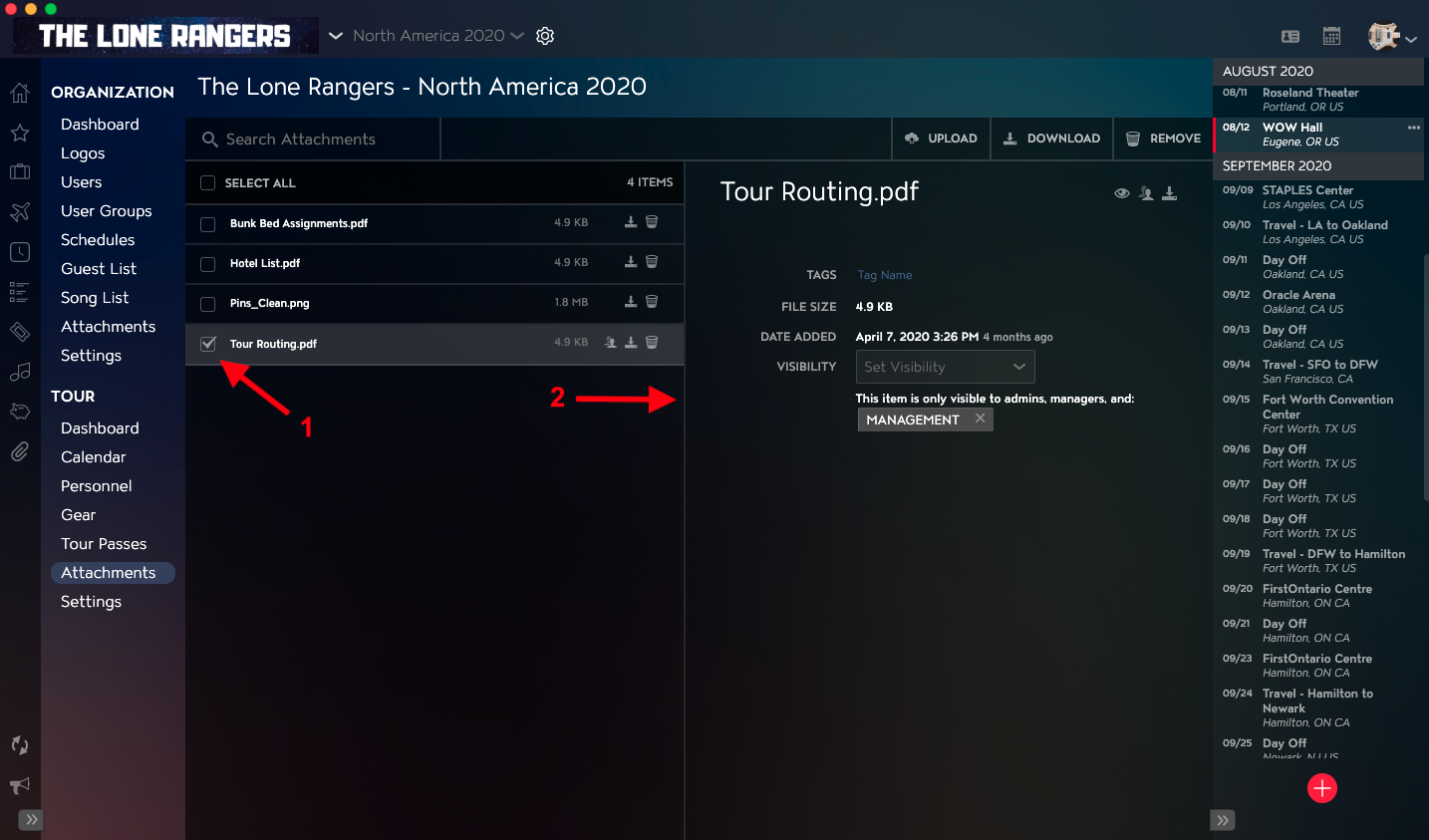
- Select the Checkbox to the left of the Attachment's name.
- You will see the Attachment details open in a column on the right.
If you have any questions after following these instructions, please click here to open a Support Request or call +1-773-862-4246 to speak with a member of our Support Team between the hours of 10:00 am - 6:00 pm US Central Time (CT), Monday through Friday.